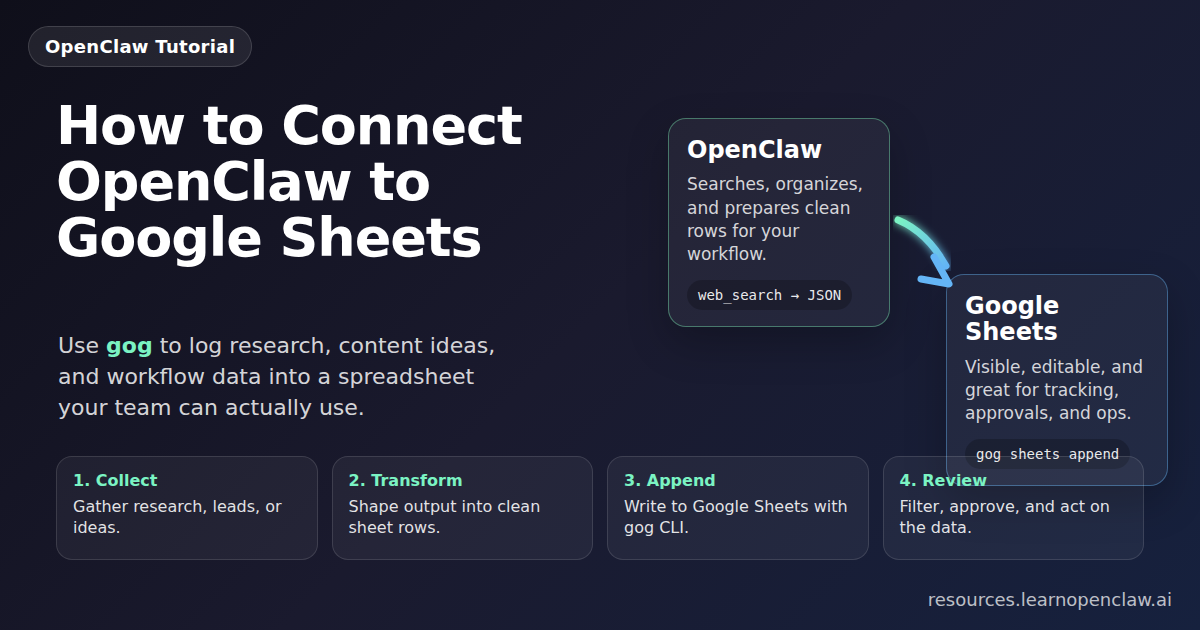
If you’re using OpenClaw for research, lead tracking, content operations, or internal workflows, Google Sheets is one of the best places to send structured data. It is fast, visible, collaborative, and dead simple to audit. Most people overcomplicate this part. They jump straight to custom dashboards or a database when a spreadsheet would do the job better for weeks or months.
This tutorial shows you how to connect OpenClaw to Google Sheets using gog, the Google Workspace CLI. We’ll walk through a practical setup, then build a pattern you can actually reuse: collect data with OpenClaw, append rows into a sheet, read the sheet back, and use cron jobs or scripts to keep it updated automatically.
The goal is not a toy demo. The goal is a workflow you can steal for real work: tracking research results, storing content ideas, maintaining lead lists, logging automation runs, and turning agent output into something your team can inspect without opening a terminal.
Why Google Sheets is the right first destination
OpenClaw can write to APIs, databases, files, and dashboards. But Sheets has a bunch of advantages that are hard to beat when you’re still figuring out the workflow:
- It gives you a clean table instantly.
- Non-technical people can edit and review it.
- You can filter, sort, chart, and comment without extra tooling.
- It works beautifully for cron-driven automations.
- It becomes a lightweight control panel for your agents.
If you are teaching OpenClaw to do repetitive work, Sheets is often the best bridge between “agent output” and “human trust.” You can see exactly what was added, when it happened, and whether the data looks sane.
What you’ll build
In this guide, you’ll create a simple tracking sheet for OpenClaw-generated research or content ideas. The same pattern works for:
- Daily web research summaries
- Lead generation pipelines
- Newsletter topic banks
- Blog idea capture
- Error logs from cron jobs
- Status dashboards for automation runs
By the end, you’ll know how to:
- Authenticate
gogfor Google Sheets access - Inspect sheet metadata
- Read ranges from a sheet
- Append rows from the command line
- Update existing cells
- Wrap the whole thing in an OpenClaw-friendly workflow
Step 1: Set up Google access with gog
The gog CLI is the cleanest way to work with Google Workspace from OpenClaw. It supports Gmail, Calendar, Drive, Contacts, Docs, and Sheets. For this tutorial, we only care about Sheets.
First, make sure gog is installed and authenticated. The exact OAuth setup only needs to happen once.
$ gog auth credentials /path/to/client_secret.json
$ gog auth add you@gmail.com --services sheets,drive
$ gog auth list
If you use one Google account most of the time, set it once in your environment so your commands stay cleaner:
$ export GOG_ACCOUNT=you@gmail.comThat saves you from repeating --account on every command.
Step 2: Create a sheet structure that won’t turn into a mess
Before you automate anything, decide what columns matter. This sounds boring, but it’s where most spreadsheet automations either stay useful or become garbage.
For a practical OpenClaw tracking sheet, start with columns like:
- created_at — timestamp of when the row was added
- source — where the data came from
- title — headline, subject, or idea name
- summary — short description
- url — original link when relevant
- status — new, reviewed, published, ignored
Create a Google Sheet manually first and add a tab called Ideas. Then put your headers in row 1. Keeping the first row fixed makes every later command easier to reason about.
Step 3: Find the sheet ID and inspect the tabs
Every Google Sheet has a sheet ID in the URL. If your sheet URL looks like this:
https://docs.google.com/spreadsheets/d/1AbCdEfGhIjKlMnOpQrStUvWxYz1234567890/edit#gid=0
Then the sheet ID is the long string between /d/ and /edit.
Use gog sheets metadata to inspect the workbook and verify the tab names:
$ gog sheets metadata 1AbCdEfGhIjKlMnOpQrStUvWxYz1234567890 --jsonThis is worth doing because it catches dumb mistakes early: wrong spreadsheet, wrong tab name, wrong account, or a sheet someone renamed without telling you.
Step 4: Read data from the sheet
Before writing anything, prove that reads work. That confirms authentication and range syntax in one shot.
$ gog sheets get 1AbCdEfGhIjKlMnOpQrStUvWxYz1234567890 "Ideas!A1:F10" --jsonYou should get JSON back with the first few rows. If this works, your foundation is solid.
Step 5: Append rows from OpenClaw-friendly scripts
This is where the workflow becomes useful. The easiest pattern is: let OpenClaw gather or generate data, then append structured rows using --values-json.
Here is a simple append example that logs one new idea:
$ gog sheets append 1AbCdEfGhIjKlMnOpQrStUvWxYz1234567890 "Ideas!A:F" \
  --values-json '[["2026-04-20T19:15:00Z","web_search","OpenClaw + Google Sheets tutorial","Step-by-step Sheets integration guide","https://resources.learnopenclaw.ai","new"]]' \
  --insert INSERT_ROWS
That single command is enough to build surprisingly capable pipelines. OpenClaw can generate five research items, a lead scoring summary, or a list of blog topics, and your script can append them all in one batch.
Important: prefer fewer, larger writes. Appending one row at a time in tight loops is slower, noisier, and more likely to hit rate limits. Build an array and append it once.
Step 6: Update cells when statuses change
Appending is only half the job. Real workflows also need updates. Maybe a human reviews an idea. Maybe a blog topic gets drafted. Maybe a lead gets contacted. That’s where gog sheets update comes in.
$ gog sheets update 1AbCdEfGhIjKlMnOpQrStUvWxYz1234567890 "Ideas!F2:F2" \
  --values-json '[["reviewed"]]' \
  --input USER_ENTERED
Use this when you know the exact row. If you don’t know the row, first fetch the sheet, locate the matching record in your script, then update the correct range.
Step 7: Put it together in a real OpenClaw workflow
Now let’s turn the pieces into something that actually feels like OpenClaw.
Imagine a daily automation that:
- Runs a web search for new OpenClaw-related topics
- Summarizes the useful results
- Writes them into a sheet
- Lets a human review the rows later
A shell script wrapper can look like this:
$ export SHEET_ID="1AbCdEfGhIjKlMnOpQrStUvWxYz1234567890"
$ export NOW="$(date -u +%Y-%m-%dT%H:%M:%SZ)"
$ gog sheets append "$SHEET_ID" "Ideas!A:F" \
  --values-json "[[\"$NOW\",\"cron\",\"5 new research topics\",\"Generated by OpenClaw daily research job\",\"\",\"new\"]]" \
  --insert INSERT_ROWS
In a richer version, you would first let OpenClaw generate a JSON file of ideas, then pass that JSON into a script that transforms it into the 2D array format Google Sheets expects.
This pattern is powerful because it separates responsibilities cleanly:
- OpenClaw thinks, searches, summarizes, and decides.
- Your script validates and reshapes the data.
- Google Sheets stores the final output where humans can review it.
Step 8: Use Sheets as both output and control surface
Here’s the move most people miss: the sheet does not have to be write-only. It can also become the place where humans steer the automation.
For example, you can add columns like:
- approved — yes or no
- owner — who should handle it
- notes — human corrections
- publish_after — date gate for later actions
Then OpenClaw can read the sheet back and only act on rows that meet specific criteria. That’s how a spreadsheet becomes a lightweight operations panel without building a full app.
Common mistakes to avoid
- Writing one row at a time in loops: batch your appends.
- Skipping metadata checks: verify tab names before scripting against them.
- Using vague columns: decide clear headers early.
- Overbuilding too soon: start with Sheets before reaching for a database.
- Ignoring idempotency: if your cron job reruns, make sure you can detect duplicates.
The duplicate problem matters a lot. If your automation may run twice, store a stable key like a URL, issue ID, or content hash so your script can check what’s already in the sheet before appending more rows.
Where this fits in an OpenClaw stack
Google Sheets is not the final destination for every system. But it is an excellent middle layer in an OpenClaw stack:
- Research: collect sources, summaries, and confidence notes
- Content: manage topic ideas, outlines, and publication status
- Sales: track leads, contact dates, and next actions
- Operations: log cron runs, failures, and human approvals
If you can see the workflow clearly in a sheet, you’ll know whether it deserves a more advanced internal tool later. Until then, don’t build the dashboard. The spreadsheet is already doing the job.
FAQ
Do I need to use the Google Sheets API directly?
No. That’s the beauty of gog. It gives you a simple CLI layer on top of Google Workspace so OpenClaw scripts can read and write without you building raw API requests from scratch.
Should I use Sheets or a database?
Use Sheets first unless you already know you need relational queries, strict transactional behavior, or large-scale throughput. For most early OpenClaw automations, a spreadsheet is faster to build, easier to inspect, and easier for other people to trust.
Can OpenClaw read from the sheet before acting?
Yes. That’s one of the best uses. Read rows with gog sheets get, filter by status in your script, and then let OpenClaw act only on approved or pending rows.
What is the safest way to avoid duplicate rows?
Store a unique key in one column and check existing rows before appending. URLs, issue IDs, email IDs, or hashes all work depending on the workflow.
Can I use this for Gmail, Docs, and Calendar too?
Absolutely. gog supports those services as well, which makes it a strong foundation for multi-step Google Workspace automations built around OpenClaw.
Final takeaway
If you’re trying to make OpenClaw useful in the real world, Google Sheets is one of the smartest first integrations you can build. It gives your automations structure, visibility, and a human review layer without forcing you into a bigger system too early.
Start with one tab, six columns, and a single append command. Once that works, add reads, statuses, approvals, and cron scheduling. That’s the sane path. Most people skip straight to complexity and regret it.
OpenClaw is great at generating and organizing work. Google Sheets is great at making that work visible. Put them together and you get a workflow that’s actually usable, not just impressive in a demo.