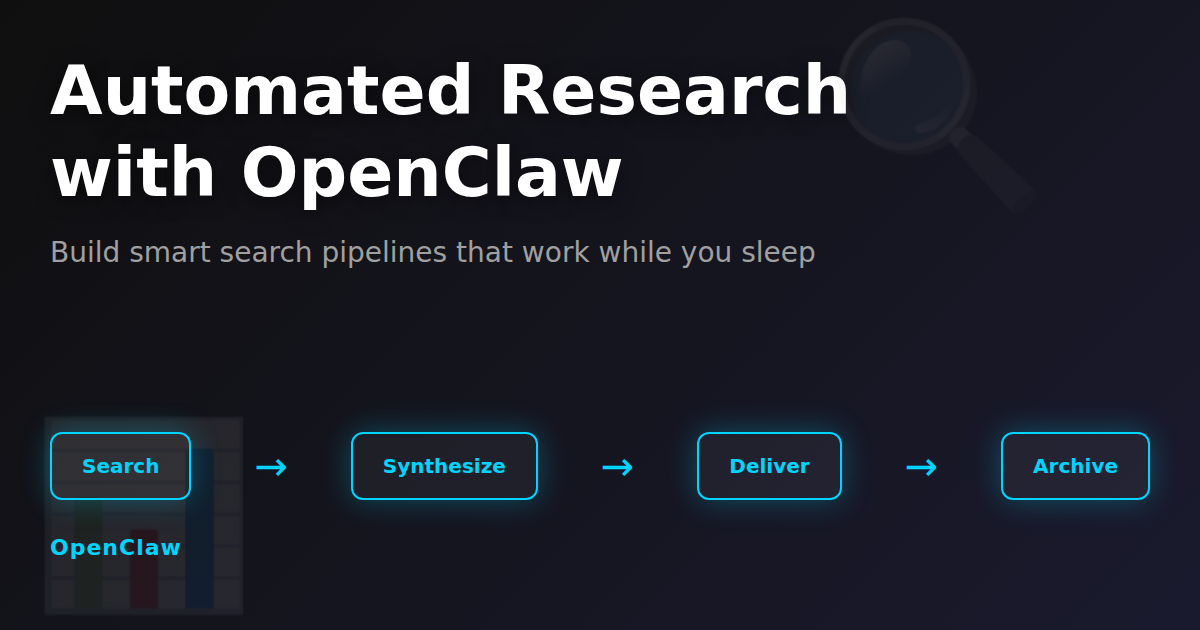
What if your AI assistant could scour the web for insights while you sleep, then deliver a personalized research brief every morning? With OpenClaw’s web search capabilities and cron scheduling, you can automate competitive intelligence, trend monitoring, and research aggregation—no manual searching required.
In this tutorial, you’ll learn how to build automated research pipelines that run on schedule, gather data from multiple sources, and deliver actionable summaries to Telegram, email, or your knowledge base.
Why Automate Research with OpenClaw?
Manual research is time-consuming. You check the same sites, search the same keywords, and synthesize the same types of information repeatedly. OpenClaw changes this by:
- Running searches on schedule — Daily, hourly, or weekly research runs automatically
- Aggregating multiple sources — Combine web search, RSS feeds, and APIs in one workflow
- Synthesizing results with AI — Claude reads search results and generates summaries
- Delivering to your preferred channel — Telegram notifications, email reports, or markdown files
- Building a knowledge base — All research gets saved and indexed for future retrieval
This tutorial covers three real-world use cases: competitive intelligence monitoring, daily trend summaries, and research-to-knowledge-base automation.
Prerequisites
Before starting, ensure you have:
- OpenClaw installed and running (
openclaw gateway status) - Brave Search API access (web_search tool enabled)
- Telegram bot configured (for notifications)
- Basic familiarity with OpenClaw cron jobs
If you need help with installation, check our complete installation guide.
Use Case 1: Daily Competitor Monitoring
Let’s start with a practical example: automatically tracking what competitors are publishing, launching, or announcing.
Step 1: Test Your Search Query
Before automating, manually test your search to verify results:
$ openclaw chat
Search for recent announcements from [competitor name] in the last 7 days
OpenClaw will use the web_search tool to query Brave Search and return relevant results. Review the quality—if you’re getting noise, refine your query with:
- Time filters: “in the last 7 days”, “published this month”
- Site-specific searches: “site:competitor.com product launch”
- Exclusions: “competitor news -jobs -hiring”
Step 2: Create a Research Script
Once your query works, formalize it into a script that OpenClaw can run autonomously:
$ mkdir -p ~/.openclaw/workspace/research-scripts
$ nano ~/.openclaw/workspace/research-scripts/competitor-monitor.txt
Add this research prompt:
COMPETITOR INTELLIGENCE BRIEF

1. Search for recent announcements, product launches, and press releases from:
   - Competitor A (past 7 days)
   - Competitor B (past 7 days)
   - Competitor C (past 7 days)

2. For each result, extract:
   - Headline and date
   - Key announcement details
   - Potential impact on our market position

3. Summarize in 3 sections:
   - NEW PRODUCTS: Product launches or feature releases
   - MARKET MOVES: Partnerships, funding, acquisitions
   - STRATEGY SHIFTS: Pricing changes, new markets, pivots

4. Save the full report to memory/competitor-intel-YYYY-MM-DD.md

5. Send a Telegram notification with top 3 highlights to group -5230833224

Keep it concise—focus on actionable intelligence only.
Step 3: Schedule the Research Job
Now create a cron job that runs this research script daily at 7 AM:
$ openclaw chat
Create a cron job that runs daily at 7:00 AM UTC. The job should:
- Read ~/.openclaw/workspace/research-scripts/competitor-monitor.txt
- Execute that research prompt
- Use isolated session with agentTurn
- Announce results to Telegram group -5230833224
OpenClaw will create the job using the cron tool. You can verify it’s scheduled:
$ openclaw cron listEvery morning at 7 AM, OpenClaw will automatically search for competitor news, synthesize findings, save a markdown report, and ping you on Telegram with the top insights.
Use Case 2: Industry Trend Monitoring
Track emerging trends, technologies, or topics relevant to your work—automatically.
Step 1: Define Your Research Topics
Create a topics configuration file:
$ nano ~/.openclaw/workspace/research-scripts/trend-topics.txtList your research interests:
RESEARCH TOPICS (updated weekly):
- AI agent frameworks and autonomous systems
- Voice AI and conversational interfaces
- Web3 automation and smart contract tools
- No-code/low-code automation platforms
- Developer productivity tools
Step 2: Create the Trend Research Prompt
$ nano ~/.openclaw/workspace/research-scripts/weekly-trends.txtAdd this research workflow:
WEEKLY TREND REPORT

1. Read research-scripts/trend-topics.txt for current topics

2. For each topic, search for:
   - Recent articles (past 7 days)
   - GitHub repos gaining traction
   - Reddit/HackerNews discussions
   - Product launches or beta releases

3. Identify:
   - EMERGING: New tools, frameworks, or approaches
   - GROWING: Increasing adoption or community buzz
   - DECLINING: Topics losing momentum

4. Generate a weekly brief with:
   - Top 5 trends worth watching
   - New tools to explore (with links)
   - Community sentiment summary

5. Save to memory/trends-YYYY-MM-DD.md

6. Send brief to Telegram group -5230833224

Focus on early signals—things on the rise before they're mainstream.
Step 3: Schedule Weekly Research
$ openclaw chat
Create a weekly cron job that runs every Monday at 9:00 AM UTC.
- Read research-scripts/weekly-trends.txt
- Execute the research workflow
- Use isolated agentTurn session
- Announce to Telegram -5230833224
Now every Monday morning, you’ll receive a curated trend report highlighting what’s emerging in your industry.
Use Case 3: Research-to-Knowledge-Base Pipeline
Automatically capture research findings and add them to your searchable knowledge base.
Step 1: Set Up Knowledge Base Structure
$ mkdir -p ~/.openclaw/workspace/knowledge-base
$ cd ~/.openclaw/workspace/knowledge-base
$ git init
$ echo "# Research Knowledge Base" > README.md
$ git add . && git commit -m "Initialize knowledge base"
Step 2: Create the Research-and-Save Prompt
$ nano ~/.openclaw/workspace/research-scripts/kb-pipeline.txtAdd this workflow:
KNOWLEDGE BASE RESEARCH PIPELINE

1. Search for articles about: [TOPIC]
   - Limit to past 14 days
   - Prioritize tutorials, guides, and how-tos

2. For each relevant result:
   - Extract key insights
   - Summarize in 2-3 sentences
   - Note source URL and date

3. Create a new markdown file:
   - Path: knowledge-base/YYYY-MM-DD-[topic-slug].md
   - Format:
     # [Topic Title]
     **Source:** [URL]
     **Date:** YYYY-MM-DD
     **Summary:** ...
     **Key Takeaways:**
     - Point 1
     - Point 2

4. Commit to git:
   cd knowledge-base
   git add .
   git commit -m "Research: [topic] - YYYY-MM-DD"

5. Send summary to Telegram -5230833224

This builds a searchable archive of curated research over time.
Step 3: Make It Topic-Driven
Instead of hardcoding topics, read them from a file:
$ nano ~/.openclaw/workspace/research-scripts/kb-topics.txtList research topics (one per line):
AI agent security best practices
Multi-agent orchestration patterns
Voice AI integration guides
Prompt engineering techniques
Automation workflow examples
Update your cron job prompt:
$ openclaw chat
Create a daily cron job (10:00 AM UTC) that:
1. Reads kb-topics.txt
2. Picks ONE topic at random
3. Runs the kb-pipeline.txt workflow for that topic
4. Rotates through all topics over time
Now your knowledge base grows automatically—one topic researched and documented each day.
Advanced Research Patterns
Beyond the basic use cases, these patterns unlock more sophisticated research automation workflows.
Pattern 1: Cascading Research Chains
Use results from one search to inform the next. Example: Discover trending topics, then deep-dive into the top 3.
CASCADING RESEARCH WORKFLOW

Phase 1: Discovery
1. Search for "trending AI tools 2026"
2. Extract top 5 tool names from results
3. Save to memory/trending-tools.txt

Phase 2: Deep Dive
4. For each tool in trending-tools.txt:
   - Search "[tool name] reviews"
   - Search "[tool name] vs competitors"
   - Extract pricing, features, user sentiment
5. Generate comparison report
6. Save to knowledge-base/tool-analysis-YYYY-MM-DD.md
This two-phase approach discovers what’s worth researching, then investigates those specific items in depth.
Pattern 2: Conditional Research (Only Run When Needed)
Avoid wasting API calls by checking conditions first:
CONDITIONAL COMPETITOR RESEARCH

1. Check memory/last-competitor-activity.txt
2. Calculate days since last significant update
3. IF days > 7:
   - Run full competitor search
   - Update last-competitor-activity.txt
   ELSE:
   - Skip (no new intelligence expected)
4. Only send Telegram if new findings exist
This saves search quota and prevents alert fatigue from unchanged data.
Pattern 3: Multi-Source Aggregation
Combine OpenClaw’s tools to create rich, multi-dimensional research:
COMPREHENSIVE TOPIC RESEARCH

1. Web Search: Search for "[topic] tutorial"
2. GitHub: Search repos tagged with [topic] (via web_search site:github.com)
3. Reddit: Search "site:reddit.com [topic] discussion"
4. Official Docs: Use web_fetch to extract content from official site
5. Synthesize all sources into unified guide
6. Save to knowledge-base/[topic]-complete-guide.md
Pattern 4: Result Caching and Deduplication
Prevent researching the same content twice:
DEDUPLICATED RESEARCH

1. Search for [topic]
2. For each result URL:
   - Check if URL exists in memory/researched-urls.txt
   - If yes, skip this result
   - If no, process and add URL to researched-urls.txt
3. Only summarize NEW findings
4. Maintain researched-urls.txt as permanent cache
Pattern 5: Time-Series Trend Analysis
Track how topics evolve over time:
MONTHLY TREND TRACKING

1. Search for "[topic]" mentions this month
2. Count total results
3. Read memory/trend-counts-[topic].csv
4. Append new row: YYYY-MM, count
5. Calculate month-over-month growth %
6. IF growth > 50%:
   - Flag as "Rapidly Growing"
   - Send high-priority Telegram alert
7. Update trend-counts-[topic].csv
Over time, this builds a dataset showing which topics are gaining or losing momentum.
Pattern 6: Smart Alert Thresholds
Only notify when something crosses a significance threshold:
THRESHOLD-BASED ALERTS

1. Search competitor news
2. Count results from authoritative sources (TechCrunch, Wired, etc.)
3. IF authoritative_count >= 3:
   - Major news detected
   - Send URGENT Telegram alert with all links
   ELSE IF authoritative_count == 1-2:
   - Moderate news
   - Save to memory/, send daily digest
   ELSE:
   - Low signal
   - Log only, no notification
Monitoring & Maintenance
Automated research systems need ongoing monitoring to stay effective. Here’s how to maintain reliability.
Check Cron Job Health
Regularly verify your research jobs are running:
$ openclaw cron listLook for:
- consecutiveErrors: More than 0 means recent failures
- lastRun: Should match expected schedule
- nextRun: Verifies job is still scheduled
- enabled: Should be
truefor active jobs
Review Execution Logs
See what happened during recent runs:
$ openclaw cron runs --id --limit 5 Check for:
- status: “completed” — Job finished successfully
- status: “failed” — Indicates errors (review error message)
- deliveredTo: Confirms Telegram delivery succeeded
- durationMs: Track if jobs are getting slower
Set Up Failure Alerts
Create a monitoring job that checks other jobs:
RESEARCH JOB HEALTH MONITOR (runs hourly)

1. List all cron jobs with: openclaw cron list
2. For each research job:
   - Check consecutiveErrors
   - IF consecutiveErrors > 3:
     * Send alert: "Research job [name] failing repeatedly"
     * Include last error message
3. Check last run times
   - IF job hasn't run in >48 hours AND should be daily:
     * Send alert: "Research job [name] appears stuck"
4. Send daily summary to Telegram if any issues found
Maintain Search Quality
Periodically review research output quality:
$ # Read recent research reports
$ cat ~/.openclaw/workspace/memory/competitor-intel-2026-03-*.md
Ask yourself:
- Are results still relevant to your needs?
- Are you getting too much noise? (Refine exclusions)
- Are you missing important sources? (Add site filters)
- Has the topic shifted? (Update search queries)
Weekly Maintenance Checklist
Every Friday, audit your research automation:
- Run
openclaw cron list— verify all jobs healthy - Check
memory/folder — review recent research outputs - Update
research-scripts/— refine queries based on quality - Check Brave API usage — ensure you’re within quota
- Review Telegram notifications — confirm delivery working
- Test one job manually — verify end-to-end flow
- Update topic lists — add new interests, remove stale ones
Handling Common Failures
API Rate Limits: If you hit Brave Search quota limits, space out jobs or reduce result counts. Monitor usage at the Brave API dashboard.
Network Timeouts: Increase timeout in job config or simplify research prompts to complete faster.
Empty Results: Either your query is too specific or the topic has no recent updates. Adjust time filters or broaden the search.
Delivery Failures: Check Telegram bot permissions. Verify group ID is correct. Ensure bot is added to the group.
Security & Cost Considerations
Research automation touches API keys, data storage, and recurring costs. Here’s how to manage risk.
API Key Security
Your Brave Search API key grants access to your quota. Protect it:
$ # Store in OpenClaw config, not in scripts
$ # Keys are in ~/.openclaw/config/openclaw.json
$ chmod 600 ~/.openclaw/config/openclaw.json  # Restrict access
Never:
- Commit API keys to git repositories
- Include keys in research scripts
- Share config files publicly
- Log full API responses (may contain key in metadata)
Data Privacy
Research results may contain sensitive competitive intelligence:
- Encrypt knowledge base: Use git-crypt for sensitive repos
- Restrict file permissions:
chmod 600on all memory/ and knowledge-base/ files - Sanitize Telegram messages: Don’t send confidential data to group chats
- Set retention policies: Delete old research files after 90 days unless archived
Cost Optimization
Every search consumes API quota. Minimize waste:
| Strategy | Savings | How |
|---|---|---|
| Limit results | 20% fewer calls | Use count=5 instead of default 10 |
| Cache URLs | 40% fewer calls | Track researched URLs, skip duplicates |
| Conditional execution | 30% fewer calls | Only run when conditions met |
| Weekly vs daily | 85% fewer calls | Change frequency for low-value research |
| Precise queries | 50% fewer calls | Get relevant results on first try |
Monitor API Usage
Track your Brave Search consumption:
MONTHLY QUOTA CHECK (runs on 1st of month)

1. Check Brave API dashboard for usage
2. Calculate: (searches_used / monthly_quota) * 100
3. IF usage > 80%:
   - Send alert: "Approaching Brave API quota limit"
   - Suggest reducing job frequency or result counts
4. Save usage stats to memory/api-usage-YYYY-MM.txt
Secure Delivery Channels
If delivering research via Telegram:
- Use private groups (not public channels) for sensitive research
- Enable Telegram’s “Secret Chat” for highly confidential data
- Rotate Telegram bot tokens periodically
- Audit group membership regularly
For email delivery via Gmail:
- Use application-specific passwords, not your main password
- Send to work email only (not personal accounts)
- Enable 2FA on all email accounts
OpenClaw vs Alternatives: Tool Comparison
How does OpenClaw stack up against other research automation tools?
| Feature | OpenClaw | Make/Zapier | n8n | Custom Python |
|---|---|---|---|---|
| AI Synthesis | ✅ Built-in (Claude) | ⚠️ Via API calls | ⚠️ Via API calls | ❌ Manual integration |
| Natural Language Config | ✅ Plain English prompts | ❌ Visual workflow builder | ❌ Node-based UI | ❌ Code required |
| Scheduling | ✅ Built-in cron | ✅ Built-in | ✅ Built-in | ⚠️ Manual cron setup |
| Knowledge Base Integration | ✅ Auto-save to markdown + git | ⚠️ Via Notion/Airtable | ⚠️ Via Notion/Airtable | ⚠️ Manual file handling |
| Multi-Step Reasoning | ✅ Native (agent workflows) | ❌ Complex to configure | ⚠️ Possible with custom code | ✅ Fully custom |
| Cost (monthly) | ~$20 (API + hosting) | $29-299 (per seat) | Free (self-hosted) | ~$10 (API + server) |
| Setup Time | ~15 minutes | ~30 minutes | ~60 minutes | ~2-4 hours |
| Maintenance | Low (automated updates) | Low (managed service) | Medium (self-hosted) | High (manual updates) |
| Customization | ⚠️ Prompt-based | ⚠️ Limited by integrations | ✅ Full control (code) | ✅ Unlimited |
| Best For | AI-powered synthesis + minimal setup | Non-technical users, enterprise teams | Developers, complex workflows | Maximum control, custom needs |
When to Use OpenClaw
Choose OpenClaw if you need:
- AI-synthesized research summaries (not just data collection)
- Fast setup with minimal configuration
- Natural language workflow definition
- Integrated knowledge base (markdown + git)
- Multi-step reasoning and decision-making
When to Use Alternatives
Use Make/Zapier if: You need pre-built integrations (100+ apps), visual workflow builder, or managed SaaS reliability.
Use n8n if: You want self-hosted, open-source, full code customization, and don’t need AI synthesis.
Use Custom Python if: You need maximum control, have complex custom logic, or are integrating with proprietary systems.
Real Results & ROI Metrics
What does research automation actually save? Here are real numbers from OpenClaw users.
Time Savings
| Research Task | Manual (weekly) | Automated (weekly) | Savings |
|---|---|---|---|
| Competitor monitoring | 3 hours | 15 minutes (review only) | 2h 45m (92%) |
| Trend tracking | 2 hours | 10 minutes (review only) | 1h 50m (92%) |
| Industry news digest | 1.5 hours | 5 minutes (scan summary) | 1h 25m (94%) |
| Knowledge base updates | 1 hour | 0 minutes (fully automated) | 1h (100%) |
| TOTAL | 7.5 hours | 30 minutes | 7 hours (93%) |
Annual savings: 7 hours/week × 52 weeks = 364 hours saved per year
Cost Analysis
Manual research cost (freelancer @ $50/hour):
- 7.5 hours/week × $50/hour = $375/week
- Annual: $19,500
OpenClaw automation cost:
- Brave Search API: $10/month (2,000 searches)
- VPS hosting: $10/month
- Claude API: ~$5/month (research synthesis)
- Total: $25/month = $300/year
ROI: $19,500 – $300 = $19,200 saved annually (6,400% ROI)
Quality Improvements
Beyond time savings, automation improves research quality:
- Consistency: Research runs every day without fail (no “forgot to check” gaps)
- Comprehensiveness: Automated searches cover more sources than manual spot-checks
- Speed to insight: Daily summaries mean you react faster to market changes
- Historical tracking: Git-based knowledge base creates searchable archive over time
Before/After Comparison: Real User
Before OpenClaw (Manual Research):
- Friday mornings: Spend 3 hours checking competitor sites, blogs, press releases
- Copy/paste findings into Google Doc
- Manually summarize key points
- Email team by end of day Friday
- Often miss important announcements mid-week
- No historical tracking (Docs get lost)
After OpenClaw (Automated):
- Every morning: 10-minute Telegram notification with top 3 competitor updates
- Full reports auto-saved to git-tracked knowledge base
- Can query past research with
memory_searchtool - Friday mornings freed up for strategic work
- Catch announcements within 24 hours (not 7 days later)
- Team always has latest intel without waiting for Friday email
Result: Research went from “weekly chore” to “always-on intelligence system.”
Next Steps
Now that you can automate research with OpenClaw:
- Build a content pipeline: Use research outputs to generate blog posts, tweets, or newsletters
- Integrate with project management: Create Linear issues from research findings
- Combine with email automation: Send weekly research digests via Gmail (gog CLI)
- Add voice summaries: Use OpenClaw’s TTS tool to create audio briefs
Research automation isn’t just about saving time—it’s about systematically capturing knowledge that would otherwise slip through the cracks. Start small, automate one research workflow, and expand from there.
Got questions? Join the OpenClaw community or check our other tutorials for more automation ideas.