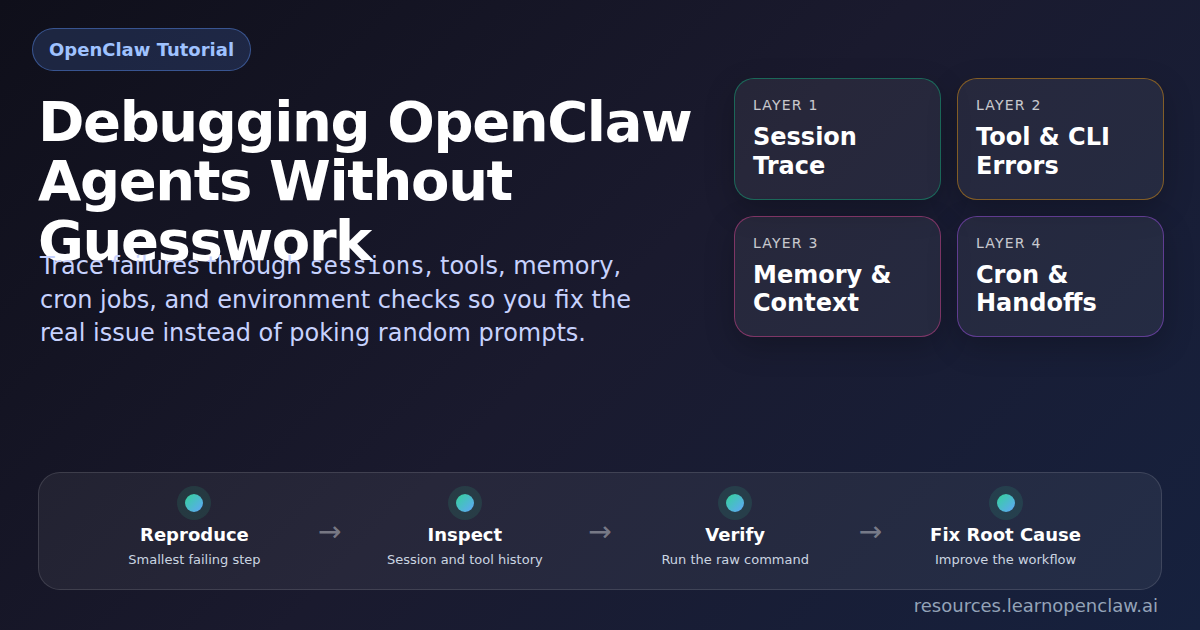
Debugging OpenClaw Agents Without Guesswork
When an OpenClaw agent misbehaves, most people make the same mistake: they start changing prompts before they understand the failure mode. That is backward. Good debugging starts with evidence, not vibes.
If your agent is looping, ignoring instructions, calling the wrong tool, going silent after an error, or producing inconsistent results, you need a repeatable workflow for finding the actual break point. OpenClaw gives you the pieces: session history, session status cards, spawned-session controls, cron visibility, memory files, background process management, browser automation, and ordinary shell access. The trick is using them in the right order.
Competitor articles on AI agent debugging usually talk about observability, traces, and monitoring. That part is useful, but a lot of them stop one step too early. They tell you to “inspect the trace” without showing how to convert that trace into a real fix. This guide does the opposite. I’ll show you the exact OpenClaw workflow for isolating the bug, proving the cause, and applying the repair.
We’ll cover how to tell whether the problem is the prompt, the tool, the runtime environment, the memory layer, the cron trigger, or the handoff between multiple agents. We’ll also pull in specific ideas from the OpenClaw docs so this is grounded in how the platform actually works, not generic agent advice.
What the Best Competitor Content Gets Right — and What It Misses
Before expanding the article, I looked at several pieces on debugging and monitoring AI agents. Fast.io emphasized traces and state inspection. Maxim AI focused on multi-agent tracing, replay, and visibility into handoffs. UptimeRobot argued that agent reliability depends on watching more than uptime: you need latency, tool success, cost, and task completion signals too.
That’s all directionally correct. The problem is that most of those articles are framework-agnostic. They talk like this:
- Log prompts, outputs, and tool calls.
- Trace multi-agent communication.
- Monitor error rates, latency, and retries.
- Replay failures and inspect state transitions.
Good advice. But if you are running OpenClaw today, the useful question is not “should I inspect the trace?” It is “which OpenClaw tool or command tells me where the break happened, and what fix should I apply next?” That is the missing bridge this article fills.
The OpenClaw Debugging Mindset: Treat the Agent Like a System
If you remember one thing, remember this: an OpenClaw agent is not just a prompt. It is a system with layers.
- Instruction layer: the user message, cron payload, skill guidance, and system constraints.
- Session layer: the current session key, transcript, model settings, and session history.
- Tool layer: read, write, exec, browser, sessions, memory, message, and the rest.
- Environment layer: files, credentials, network, binaries, permissions, services.
- Automation layer: cron schedules, isolated runs, channel delivery, heartbeat timing.
- Orchestration layer: spawned sessions, ACP harnesses, cross-session messages, completion routing.
If you edit the wrong layer, you waste time. If the problem is that wp is missing from PATH, rewriting the skill prompt is useless. If the problem is that an isolated cron job uses the wrong model or an underspecified payload, debugging the main session transcript won’t save you. The job is to identify the bad layer first.
Step 1: Start With the First 60 Seconds
The OpenClaw docs are very clear here. The first thing to do when something is broken is not to freestyle. Run the boring checks.
From the docs, the recommended starting point is:
$ openclaw status
$ openclaw status --all
$ openclaw gateway status
$ openclaw status --deep
$ openclaw logs --follow
Why this matters:
openclaw statusgives you the quick summary: machine, gateway reachability, sessions, and basic runtime issues.openclaw status --allgives a safer report you can share or archive, with sensitive parts redacted.openclaw gateway statustells you whether the supervisor and RPC layer are actually reachable.openclaw status --deepruns live probes.openclaw logs --followstops you from debugging blind.
This is one of the places competitor content is too abstract. They’ll say “check observability.” The OpenClaw docs give you the exact commands. Use them.
Example fix: the gateway is down, not the agent
Suppose your Telegram agent “stops responding.” The instinct is to assume the model or prompt broke. But if openclaw gateway status shows the daemon is unreachable, the bug is infrastructure, not intelligence.
Fix: restart the gateway and re-check health before touching prompts.
$ openclaw gateway restart
$ openclaw gateway status
$ openclaw status --deep
If those checks recover the service, you just saved yourself from a pointless prompt rewrite.
Step 2: Inspect the Session, Not Just the Final Reply
The best OpenClaw-specific debugging feature is the session toolset. According to the docs, the key tools are sessions_list, sessions_history, sessions_send, sessions_spawn, subagents, and session_status.
That matters because agent bugs are often visible in the transcript before they are visible in the final answer. You need to know:
- What exact task did the agent receive?
- Which session was active?
- What tools did it call?
- Where did the first failure occur?
- Did it recover, go silent, or continue with bad assumptions?
OpenClaw’s docs also note that sessions_history can include tool results when you pass includeTools: true. That is crucial. If you only inspect the chat text, you miss the evidence.
Example fix: the wrong session was being inspected
A common mistake in multi-session setups is debugging the main session while the real failure happened inside an isolated child session or cron-owned session.
Fix workflow:
- Use
sessions_listto find recent sessions. - Filter by type if needed: main, group, cron, hook, or node.
- Read the specific child or cron transcript with
sessions_history. - Include tools.
From the docs, session visibility is intentionally scoped, and the default visibility is usually the current tree. That means if you spawned the child from the current session, you can inspect it without guessing file paths.
If your agent “looked fine” in the chat but the child session failed a shell command, that is not a hallucination issue. It is a child-session execution failure.
Step 3: Use session_status Before You Start Theorizing
Another underused OpenClaw debugging move is the status card. The docs describe session_status as the lightweight equivalent of /status. It reports model/runtime state, usage, time, and linked background-task context.
This is useful when debugging weird behavior like:
- the session switched models unexpectedly,
- a run is consuming more tokens than expected,
- the current session feels “different” after a model override,
- a background task is still attached to the session.
Example fix: a per-session model override changed behavior
Imagine an agent suddenly gets shorter, less careful, or worse at tool selection. You start blaming the skill file. But session_status shows that the session has a model override from a prior experiment.
Fix: clear the override instead of rewriting the prompt. The docs explicitly note that model=default clears a per-session override.
That is a much cleaner repair than editing your instructions to compensate for a temporary model state.
Step 4: Prove Whether It’s a Tool Problem or an Environment Problem
This is where plain shell checks still matter. OpenClaw gives you exec, and the docs for background exec explain exactly how it behaves: foreground returns output directly, background runs return a session ID, and the process tool is what you use to poll, inspect logs, or intervene.
Competitor articles often say “trace the tool call.” Good. But after tracing it, do the adult thing: run the underlying command directly.
Example fix: WordPress CLI path problem
Suppose a blog-post workflow fails during publishing. The assistant output is vague. The real issue might be that the command was run from the wrong directory. In WordPress environments, that happens constantly.
Fix: run the command directly with the correct path.
$ wp option get siteurl --path=/var/www/resources.learnopenclaw.ai --allow-root
$ wp post list --path=/var/www/resources.learnopenclaw.ai --allow-root --post_status=draft
If the direct command works, the environment is probably fine and the issue is how the agent invoked it. If the direct command fails too, then the prompt is innocent and the environment is guilty.
How to read command failures correctly
No such file or directory: wrong path or missing checkout.Permission denied: filesystem or executable permission problem.Command not found: missing dependency or wrong PATH.grepexit code 1: often just means no matches were found.git commitwith “nothing to commit”: usually not a bug at all.
That interpretation layer matters. Half of debugging is correctly naming what just happened.
Step 5: Debug Background Processes Like OpenClaw Actually Runs Them
The OpenClaw docs on exec and process are more useful than most people realize. Long-running commands can be backgrounded automatically after yieldMs, and only backgrounded sessions are managed through process.
This is exactly the kind of thing generic agent-observability articles gloss over. They’ll say “monitor long-running work.” Fine. In OpenClaw, that means:
- start the command with
exec, - let it background if needed,
- use
process pollorprocess logto read output, - use
process killonly when intervention is necessary.
Example fix: the build is still running, not frozen
A common misread is thinking the agent has stalled when the underlying process is simply still working. Because OpenClaw keeps output in memory for backgrounded runs, the right move is to inspect the process session, not spawn a duplicate build.
Fix: poll the background session and confirm whether the command is active, failed, or completed silently.
This prevents one of the stupidest debugging mistakes: starting the same expensive process twice because you assumed silence meant failure.
Step 6: Check Memory and Context Drift Before Calling the Model “Confused”
Some failures look like reasoning bugs but are actually memory bugs. OpenClaw makes a sharp distinction between live chat context and durable memory. That distinction matters when you are debugging inconsistent answers.
The session-management docs explain that OpenClaw persists sessions in two layers:
- a mutable session store like
sessions.jsonfor metadata, - append-only transcript files for the actual conversation and tool history.
The deeper session docs also explain compaction, session resets, transcript persistence, and maintenance rules. Translation: a fact that existed in your head or in a long scrollback is not automatically durable forever.
Example fix: the fact was never written down durably
Suppose your agent remembers a project detail on Tuesday and forgets it on Friday. Your first thought is “the memory system is flaky.” Sometimes the real answer is simpler: the information never made it into MEMORY.md or a durable note, and the session compacted or reset.
Fix: move recurring facts into durable memory and retrieve them deliberately when needed.
In practical terms, ask:
- Should this fact have lived in a memory file?
- Was a memory search supposed to happen?
- Did the current run depend on fragile chat context instead?
If the answer is yes, the repair is not “make the prompt more forceful.” The repair is “store the fact in a place the system can actually retrieve later.”
Step 7: Debug Cron Jobs as Cron Jobs, Not as Regular Chats
This is another place where the OpenClaw docs are refreshingly specific. Cron runs inside the Gateway, persists jobs in ~/.openclaw/cron/jobs.json, and supports multiple execution styles: main session, isolated session, current session, or custom session.
That means a cron bug can live in several places:
- the schedule,
- the timezone,
- the session mode,
- the payload message,
- the model override,
- the delivery configuration.
Example fix: the cron payload was too vague
Imagine a scheduled job says, “Check the docs and report back.” The output is mushy and inconsistent. That is not because cron is broken. It is because the task specification is lazy.
Bad cron payload: “Check the blog.”
Better cron payload: “Check for new draft posts created in the last 24 hours, report title, post ID, category, word count, and whether a featured image is attached. If anything is missing, say exactly what is missing.”
That one change upgrades the reliability of the automation more than twenty rounds of prompt hand-wringing.
Example fix: wrong execution style
From the docs, isolated cron runs use a dedicated cron:<jobId> session, while main-session jobs enqueue system events for the main conversation. If you expected the job to build on prior context but you configured it as isolated, the agent will seem forgetful. It is not forgetful. You gave it a fresh session.
Fix: switch to the right session type for the job’s goal.
- Use isolated for standalone reports and chores.
- Use current or a custom session when persistent context matters.
- Use main for reminders or things that should wake the main session.
Example fix: timezone mismatch
The docs also note that timestamps without a timezone are treated as UTC, and cron expressions can use --tz. If your job is firing at the wrong local time, don’t blame the agent. Fix the schedule definition.
Step 8: Multi-Agent Failures Usually Start at the Handoff
The competitor articles were right about one thing: multi-agent systems fail in the handoffs. OpenClaw’s session-tool docs make this concrete. sessions_spawn creates isolated sessions for background work, returns immediately, and completion comes back through an announce step. The docs also warn that leaf sub-agents do not get unlimited session tools by default. Visibility and capability are scoped on purpose.
That means debugging an orchestration issue starts with the handoff contract.
Ask these questions:
- What exact task was given to the child?
- Was the right runtime used:
subagentoracp? - Did the child have the files or context it needed?
- Was the output format specified clearly?
- Did the parent wait for a real result, or did it react to an interim status message?
Example fix: vague sub-agent task
Bad handoff: “Research this topic and help with the article.”
Better handoff: “Research 5 competitor articles on OpenClaw or AI agent debugging. Return: title, URL, 3 key sections covered, 3 gaps, and 5 ideas missing from our draft. Do not edit files. Deliver findings as a bullet summary.”
That is not prompt-engineering theater. That is basic task design. When the parent is vague, the child improvises, and the workflow drifts.
Example fix: wrong runtime for the job
If you intended to use an ACP harness like Codex or Claude Code, but spawned a normal sub-agent instead, the child may lack the runtime behavior you expected. The repair is to correct the runtime choice, not to pressure the child session into pretending it has tools it does not have.
Step 9: Browser Failures Are Usually UI Failures, Not Reasoning Failures
When an OpenClaw agent uses browser automation, don’t lump everything into “the agent messed up.” UI automation fails for boring reasons:
- expired login state,
- a changed label or selector,
- a modal or cookie banner,
- focus going to the wrong element,
- the wrong tab being attached.
The fix pattern is simple: snapshot first, act second. If a stable reference exists, use it. Do not wallpaper over brittle UI state with random waits unless there is no better option.
Example fix: login expired
If the browser automation keeps “missing” a button that you know exists, check whether the page silently redirected to login. That is not tool incompetence. That is auth state drift. Re-authenticate or restore the correct session before touching selectors.
Step 10: Use the Session Files When You Need the Ground Truth
The OpenClaw session docs make an important point: sessions_history is bounded and safety-filtered. That is usually what you want, but sometimes you need the raw, byte-level truth. In those cases, inspect the transcript file on disk instead of treating the convenience view as a forensic dump.
The docs describe the on-disk structure clearly:
~/.openclaw/agents/<agentId>/sessions/sessions.jsonfor session metadata,~/.openclaw/agents/<agentId>/sessions/<sessionId>.jsonlfor transcripts.
Example fix: you needed the exact transcript
Maybe the bounded session-history view omitted older rows, or large content was truncated. If you are chasing a subtle state transition, inspect the real transcript file. This is especially helpful when you need to confirm whether a bad assumption came from the agent, from an earlier tool output, or from a summarized context block.
Do this sparingly, but know when it matters.
A Practical Debugging Runbook for OpenClaw
Here is the workflow I recommend in real life:
- Run the first-60-seconds checks. Confirm the gateway, status, logs, and obvious health issues first.
- Reduce to the smallest reproducible failing step. Don’t rerun a giant workflow if one command or one child session is the real suspect.
- Inspect the right session. Use session tools to read the transcript with tool output, not just assistant text.
- Check session status. Confirm model/runtime state and background-task context.
- Reproduce the tool or command directly. Separate environment failures from instruction failures.
- Check memory durability. Was the required fact actually stored and retrievable?
- Inspect cron settings if automation is involved. Payload, timing, session mode, model, delivery.
- Inspect the handoff if multiple agents are involved. Task clarity, runtime, output contract, completion path.
- Only then edit prompts, skills, or code.
That order matters. It prevents you from changing the agent’s “brain” when the real issue is in the plumbing.
Concrete Failure Modes and Fixes
Failure: The agent goes silent after an exec command
Likely causes: the command backgrounded, the output was quiet, or the process is still running.
Fix: inspect the background process session, poll for output, confirm completion, and only kill it if intervention is needed.
Failure: The answer is plausible but wrong about prior work
Likely causes: the needed information was never written to durable memory, the session reset, or the wrong context source was used.
Fix: store the decision in memory, retrieve it explicitly, and stop relying on fragile scrollback.
Failure: A cron job runs, but the result is inconsistent
Likely causes: underspecified payload, wrong session mode, wrong timezone, or delivery confusion.
Fix: rewrite the cron message with explicit output requirements, verify timezone, and choose the session style deliberately.
Failure: A sub-agent returns low-quality work
Likely causes: vague task, missing completion criteria, missing context, or wrong runtime.
Fix: improve the handoff. Tell it exactly what to return, in what format, and what “done” means.
Failure: Browser automation suddenly stops working
Likely causes: expired auth, changed UI text, modal interruption, wrong tab attachment.
Fix: snapshot the UI state, verify the attached tab, restore auth if needed, then update the interaction target.
Why This Matters More Than Ever
The more capable your OpenClaw setup becomes, the less useful “just try a better prompt” gets. As soon as you add cron, browser automation, memory search, sub-agents, external tools, or multiple channels, you are operating a system, not just chatting with a model.
That is why the competitor articles are only half the story. Yes, you need observability. Yes, you should track tool calls, latency, and handoffs. But the real win is being able to say:
- the gateway is healthy,
- the failing session is this one,
- the first bad step is here,
- the command failed for this reason,
- and the repair is this exact change.
That is the difference between debugging and guessing.
FAQ
What is the fastest way to debug an OpenClaw agent?
Run the first health checks from the docs, isolate the smallest failing step, inspect the correct session with tool output included, and test the underlying command or integration directly. Do not start by rewriting prompts.
How do I know whether the problem is the prompt or the environment?
If the same command or integration fails outside the agent too, it is an environment or dependency issue. If the direct command works but the agent uses it badly, you are probably looking at an instruction, tool-selection, or orchestration issue.
What OpenClaw docs are most useful for debugging?
Start with the FAQ troubleshooting section, then read the Session Tools docs, the Scheduled Tasks docs for cron issues, the Background Exec and Process docs for long-running commands, and the Session Management deep-dive when you need to understand transcript persistence and compaction.
Why do isolated cron jobs feel forgetful?
Because they are supposed to be. Isolated runs use a dedicated cron:<jobId> session with a fresh turn. If you need persistent context across runs, use a current or custom session instead.
Why do sub-agents fail even when the parent seems fine?
Because the failure often lives in the handoff. The child may have received vague instructions, the wrong runtime, or insufficient context. Inspect the child session itself before changing the parent prompt.
Should I always inspect transcript files on disk?
No. Start with session tools because they are safer and faster. Only go to the raw .jsonl transcript when the bounded history view omits something you genuinely need for root-cause analysis.
Final Takeaway
If you want OpenClaw agents that feel reliable, stop treating failures like magic. They are usually traceable. OpenClaw already gives you the main tools: status checks, session inspection, session status cards, background process control, cron visibility, transcript persistence, and sub-agent orchestration. The upgrade is not “make the model smarter.” The upgrade is learning how to debug the system in layers.
Do that consistently and your fixes get faster, your automations get sturdier, and you waste far less time editing the wrong thing.
That’s the real skill: not building an agent that never fails, but building a workflow where failures become obvious, explainable, and fixable.