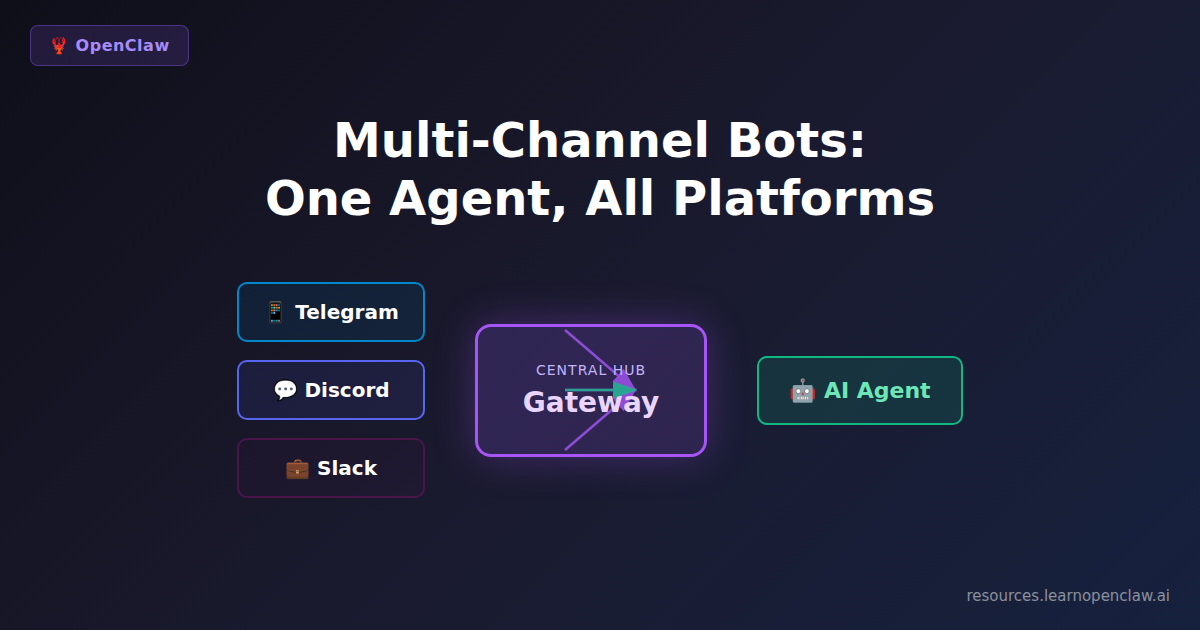
Imagine this: Your support team gets questions on Telegram. Your dev team lives in Discord. Your sales team uses Slack. Instead of running three separate chatbots (and three separate AI bills), you run one OpenClaw agent that responds intelligently across all three platforms simultaneously.
This isn’t science fiction. OpenClaw’s message tool supports multiple channel plugins out of the box. In this ultimate guide, you’ll master everything from basic setup to advanced multi-agent architectures, security hardening, and production deployment strategies.
By the end of this guide, you’ll have a production-ready multi-channel system that can:
- Receive and route messages intelligently across platforms
- Bind user identities across channels for unified conversations
- Handle platform-specific features (reactions, threads, polls, voice)
- Scale with multiple specialized agents
- Implement security hardening and compliance controls
- Monitor performance and optimize costs
- Recover gracefully from partial outages
Why Multi-Channel Matters
Most teams are fragmented across communication platforms. Your customers might prefer Telegram. Your team might live in Discord. Your enterprise clients might require Slack. Running separate bots for each platform creates:
- Inconsistent responses – Each bot behaves differently
- Duplicated costs – You’re paying for three AI agents doing the same work
- Context loss – Knowledge gained in one channel doesn’t transfer to others
- Maintenance hell – Three codebases to update, three sets of credentials to manage
OpenClaw solves this with a unified message tool that abstracts platform differences. Your agent doesn’t care whether the message came from Telegram or Discord—it just responds.
Understanding the Gateway Architecture
Before diving into configuration, understanding OpenClaw’s Gateway architecture is crucial. The Gateway is the central control plane that makes multi-channel work.
How the Gateway Manages Channels
Think of the Gateway as the only “always-on” part of your system that needs to be stable. Channels connect into it. Sessions are keyed and stored from it. Tools get dispatched from it.
This architecture provides two critical advantages:
- Continuity: Short outages on one channel don’t destroy your state
- Security boundaries: You can keep the Gateway private while using public chat platforms
If you’re hosting on a VPS (recommended for production), this means uptime, predictable networking, and isolation from your personal machine.
Session Routing and Identity Binding
Every incoming message gets a deterministic session key. Direct messages end up in a “main” session for that user. Group chats, channels, and threads get their own keys so discussions don’t bleed together.
The critical part is identity mapping across platforms. Your WhatsApp number, Telegram user ID, and Discord user ID are different identifiers. If you want “one you” across all channels, you configure identity bindings so OpenClaw knows they represent the same person.
If you skip this step, you still get multi-channel—you just get multiple identities. That’s not wrong. It’s sometimes better for teams because it keeps people separated by default.
identityBindings:
  - userId: "ahmad"
    telegram: "1651570759"
    discord: "987654321"
    slack: "U01234567"
    # Now Ahmad gets one unified session across all platforms
Prerequisites
Before starting, you’ll need:
- OpenClaw installed and running (installation guide here)
- Bot tokens from each platform you want to support
- Basic understanding of YAML configuration
- For production: A VPS with stable networking (recommended)
- 10-15 minutes for initial setup, 30-60 minutes for security hardening
Step 1: Get Your Bot Tokens
Each platform requires a bot token. Here’s how to get them:
Telegram Bot Token
Open Telegram and message @BotFather:
/newbotFollow the prompts to name your bot. BotFather will give you a token like:
123456789:ABCdefGHIjklMNOpqrsTUVwxyz1234567Discord Bot Token
- Go to Discord Developer Portal
- Click New Application
- Name your application and click Create
- Navigate to Bot in the left sidebar
- Click Add Bot
- Click Reset Token and copy the token
- Enable Message Content Intent under Privileged Gateway Intents
Slack Bot Token
- Go to Slack API Apps
- Click Create New App → From Scratch
- Name your app and select your workspace
- Navigate to OAuth & Permissions
- Add these scopes under Bot Token Scopes:
chat:writechannels:historygroups:historyim:historyreactions:writechannels:read(for channel discovery)users:read(for user info)
- Click Install to Workspace
- Copy the Bot User OAuth Token (starts with
xoxb-)
WhatsApp Integration (Advanced)
WhatsApp is more complex. OpenClaw uses the Baileys library, which speaks the WhatsApp Web WebSocket protocol. This is powerful but comes with important considerations:
- Not an official Meta API: WhatsApp Web behavior can change when Meta updates the protocol
- Supply chain risk: In late 2025, a malicious npm package “lotusbail” impersonated Baileys and stole credentials. Always verify you’re installing the official package
- Session security: Session credentials must be locked down—if stolen, someone can hijack your WhatsApp Web session
- Dedicated number recommended: Run WhatsApp on a separate number if mixing personal chat with automation makes you nervous
Setup flow is QR-based (similar to WhatsApp Web):
$ openclaw channel add --kind whatsapp
# Scan QR code with WhatsApp app → session credentials stored locally
Security note: Credential files should have 600 permissions and never be committed to git.
Step 2: Configure OpenClaw for Multi-Channel
Open your OpenClaw configuration file:
$ nano ~/.openclaw/config.yamlAdd all channels under the channels section:
channels:
  - id: telegram
    kind: telegram
    token: "YOUR_TELEGRAM_BOT_TOKEN"
    enabled: true
    transport: polling  # Or 'webhook' for VPS setups

  - id: discord
    kind: discord
    token: "YOUR_DISCORD_BOT_TOKEN"
    enabled: true

  - id: slack
    kind: slack
    token: "YOUR_SLACK_BOT_TOKEN"
    enabled: true
    transport: socket  # Socket Mode for easy NAT traversal
Polling vs Webhooks: When to Use Each
Polling (your bot asks the platform “any new messages?”):
- ✅ Works behind NAT with no inbound ports
- ✅ Easier setup for home servers
- ❌ Higher latency (1-3 second delay)
- ❌ More API calls (can hit rate limits faster)
Webhooks (platform pushes messages to your URL):
- ✅ Real-time delivery (sub-second latency)
- ✅ More efficient (fewer API calls)
- ❌ Requires public HTTPS endpoint
- ❌ More complex setup (reverse proxy, TLS certificate)
Best practice: Use polling for development and home servers. Switch to webhooks for production VPS deployments.
Save the file and restart OpenClaw:
$ openclaw gateway restartCheck the logs to verify all channels connected:
$ tail -f ~/.openclaw/gateway.logYou should see messages like:
✅ Channel telegram connected
✅ Channel discord connected
✅ Channel slack connected
Step 3: Invite Your Bot to Channels
Telegram
- Create a group or use an existing one
- Add your bot as a member
- Make it an admin if you want it to manage messages
- Disable Privacy Mode (see troubleshooting section)
Discord
- Go back to your Discord application in the Developer Portal
- Navigate to OAuth2 → URL Generator
- Select
botscope - Select these permissions:
Send Messages,Read Message History,Add Reactions,Manage Threads - Copy the generated URL and open it in your browser
- Select your server and authorize
Slack
Your bot is already installed in your workspace from Step 1. Just invite it to a channel:
/invite @YourBotNameStep 4: Test Cross-Platform Messaging
Now comes the fun part. Send a message to your bot on any platform:
- Telegram: “What’s the weather in Dubai?”
- Discord: “What’s the weather in Dubai?”
- Slack: “What’s the weather in Dubai?”
Your OpenClaw agent receives all three messages and responds to each one individually—using the same brain, the same memory, the same knowledge base.
Step 5: Channel-Specific Routing
Sometimes you want different behavior per channel. For example:
- Telegram: Customer support (public-facing)
- Discord: Developer notifications (internal)
- Slack: Sales team alerts (enterprise)
You can route messages based on the incoming channel. Create a simple skill to handle this:
$ mkdir -p ~/.openclaw/skills/channel-router
$ nano ~/.openclaw/skills/channel-router/SKILL.md
Add this content:
# Channel Router Skill

When responding to messages, check the incoming channel and adapt your tone:

- **telegram**: Friendly, customer-facing. Use emojis. Be helpful.
- **discord**: Technical, developer-focused. Include code examples.
- **slack**: Professional, sales-oriented. Focus on business value.

Use the session metadata to detect the channel. Adjust your response accordingly.
Now when your agent responds, it automatically adapts its tone based on the platform.
Multi-Agent Architectures for Production
Running one agent across all channels works great—until you need different security boundaries or capabilities per channel. This is where multiple agent instances become powerful.
Pattern 1: Personal vs Team Agents
A common setup:
- Personal agent on WhatsApp/Telegram with broader permissions (can run shell commands, access files)
- Support agent on Slack restricted to messaging and docs lookup only
- Ops agent on Discord with limited allowlisted commands for deploy notifications
This isn’t overengineering—it’s the difference between “agent automation” and “agent risk.”
agents:
  - id: personal
    channels: [whatsapp, telegram]
    tools: [exec, browser, memory_search]
    workspace: ~/personal-workspace

  - id: support
    channels: [slack]
    tools: [web_search, web_fetch]  # No exec/browser
    workspace: ~/support-workspace

  - id: ops
    channels: [discord]
    tools: [message]  # Notifications only
    allowlist:
      - deploy_status
      - health_check
Pattern 2: Role-Based Permissions
Discord and Slack support role-based access control. You can restrict which users or roles can trigger sensitive commands:
# In AGENTS.md or skill configuration
permissions:
  discord:
    allowed_roles:
      - "Admin"
      - "DevOps"
    allowed_users:
      - "ahmad#1234"
  slack:
    allowed_channels:
      - "#ops-only"
Security Hardening for Production
If you run multi-channel OpenClaw in production, assume someone will try to poke it. Not because you’re a target, but because exposed bots get found automatically.
Rules That Keep You Out of Trouble
- Do not expose the Gateway directly to the public internet. Keep it private. Use a private network, reverse proxy with auth, or zero-trust access.
- Allowlist who can talk to the bot. This matters most on WhatsApp and Telegram. A bot that accepts messages from anyone is a liability.
- Limit tool access. If OpenClaw can run arbitrary shell commands, treat it like a privileged user.
- Isolate execution. Docker sandboxing or OS-level restrictions reduce blast radius when something goes wrong.
- Protect credentials at rest. Lock down file permissions (
chmod 600). Use full-disk encryption if possible. - Rotate tokens regularly. Especially if you suspect a leak or see unusual activity.
- Monitor for abuse. Set up alerts for failed auth attempts, rate limit hits, or suspicious command patterns.
Allowlisting Implementation
security:
  allowlist:
    telegram:
      - "1651570759"  # Ahmad
      - "987654321"   # Rukaya
    whatsapp:
      - "+971557259348"
    discord:
      - "123456789"
  rejectUnknown: true  # Silently ignore unauthorized users
Home Server vs VPS: Which Should You Choose?
Both work. The choice is about tradeoffs, not ideology.
Home Server Setups
Best for: Privacy-focused users, development, personal use
Pros:
- Maximum privacy—data never leaves your network
- No monthly VPS costs
- Full control over hardware
Cons:
- Occasional downtime (power outages, ISP issues)
- NAT traversal complexity (polling works, webhooks harder)
- WhatsApp may require occasional re-pairing during protocol changes
Tip: Telegram long-polling is a hidden win here—you can run it behind NAT with no inbound ports open.
VPS Setups
Best for: Production deployments, team bots, 24/7 availability
Pros:
- 99.9%+ uptime
- Stable networking (public IP, clean DNS)
- Easy webhook setup (HTTPS endpoint)
- Isolated from personal devices
Cons:
- Monthly cost ($5-20/month for basic VPS)
- Requires server management skills
- Data leaves your physical premises
Reality check: Most people start at home, then move to a VPS when they realize they miss the bot when it’s offline. That’s the honest progression.
Step 6: Send Messages Programmatically
You can also send messages from OpenClaw to any channel using the message tool:
$ openclaw message send --channel telegram --to "@username" --message "Hello from OpenClaw!"
$ openclaw message send --channel discord --to "1234567890" --message "Deploy complete!"
$ openclaw message send --channel slack --to "#general" --message "Sales report ready"
This is powerful for:
- Notifications: Send deploy alerts to Discord
- Reports: Daily summaries to Slack
- Customer updates: Order confirmations to Telegram
Step 7: Platform-Specific Features
Each platform has unique capabilities. OpenClaw supports them through the message tool’s action parameter:
Telegram Features
$ openclaw message poll --channel telegram --pollQuestion "Which feature?" --pollOption "Feature A" --pollOption "Feature B"
$ openclaw message react --channel telegram --messageId 123 --emoji "👍"
$ openclaw message topic-create --channel telegram --topic "New Topic"
Discord Features
$ openclaw message thread-create --channel discord --channelId 1234567890 --threadName "Bug Discussion"
$ openclaw message pin --channel discord --messageId 987654321
$ openclaw message emoji-list --channel discord
Slack Features
$ openclaw message channel-list --channel slack
$ openclaw message search --channel slack --query "error logs" --limit 10
Rate Limits and Cost Optimization
Every platform has rate limits. Hitting them breaks your bot—sometimes for hours.
Platform Rate Limits (2026)
- Telegram: 30 messages/second globally, 1 message/second per chat. Hitting limits results in 24-hour ban.
- Discord: 5 requests/second per channel. Exceeding causes exponential backoff (can reach 10+ minutes).
- Slack: Tier-based (1+ request/minute for basic, more for paid). Exceeding causes HTTP 429 with Retry-After header.
- WhatsApp Business API: $0.0047/message (US). Template messages cheaper than session messages.
Cost Optimization Strategies
- Batch notifications: Send one message with multiple updates instead of individual messages
- Debounce rapid events: Wait 5 seconds before sending notifications to group similar events
- Use templates (WhatsApp): Pre-approved templates cost less than ad-hoc messages
- Monitor API usage: Set up alerts when approaching rate limits
- Implement exponential backoff: Retry failed messages with increasing delays
Analytics and Monitoring
Production multi-channel systems need visibility. Track these metrics:
Key Metrics to Monitor
- Message delivery rate: % of messages successfully delivered per channel
- Response time: Median time from user message to bot reply (aim for <2 seconds)
- Error rate: Failed API calls, authentication errors, timeouts
- Channel health: Connection uptime per channel
- User engagement: Messages per user, daily active users per channel
Implementation Example
# Set up daily monitoring report
openclaw cron add
  --name "Daily Channel Health Report"
  --schedule "0 9 * * *"
  --task "Generate a report with: message counts per channel, error rates, avg response time, channel uptime. Send to Slack #ops"
Compliance and GDPR Considerations
If you’re handling customer data across multiple channels, compliance matters.
Data Retention Policies
Different platforms have different data retention requirements:
- GDPR (EU): Users have right to data deletion. Implement
/delete-my-datacommand - Message logs: Store only what’s necessary. Rotate logs after 30-90 days
- Credentials: Encrypt at rest, never log in plaintext
# Automated log rotation
find ~/.openclaw/logs -name "*.log" -mtime +90 -delete
Privacy by Design
- Minimize data collection: Don’t log message content unless necessary
- User consent: Get explicit opt-in before storing personal data
- Transparency: Provide
/privacycommand explaining what you store
Advanced: Cron Jobs Across Channels
Want to send daily reports to different channels? Set up a cron job that routes messages intelligently:
$ openclaw cron add
  --name "Daily Multi-Channel Report"
  --schedule "0 9 * * *"
  --task "Generate a daily summary and send to: Telegram group -5081763980, Discord channel 1234567890, and Slack #reports"
Your agent will:
- Generate the report once
- Send it to all three channels
- Adapt the formatting for each platform
Debugging Multi-Channel Systems
When things break across multiple channels, debugging gets complex. Here’s a systematic approach:
Step 1: Isolate the Channel
Disable all channels except one:
$ openclaw channel disable discord
$ openclaw channel disable slack
# Now test only Telegram
If the issue disappears, the problem is specific to the disabled channel.
Step 2: Check State Inspection
$ openclaw sessions list --channel telegram
$ openclaw sessions history --sessionKey "telegram:1651570759"
Look for:
- Session key mismatches (identity binding issues)
- Memory leaks (session growing unbounded)
- Tool call failures
Step 3: Enable Debug Logging
$ export DEBUG=openclaw:*
$ openclaw gateway restart
Watch for API call failures, authentication errors, rate limit hits.
Failover and Recovery Patterns
Production systems need graceful degradation when channels fail.
Pattern 1: Health Checks
# Every 5 minutes, check channel health
openclaw cron add
  --name "Channel Health Check"
  --schedule "*/5 * * * *"
  --task "Check connection status for all channels. If any channel is down, send alert to Slack #ops and attempt reconnection"
Pattern 2: Fallback Channels
If critical notifications must get through, configure fallbacks:
notifications:
  critical:
    primary: slack
    fallback: telegram
    fallback2: discord
  # If Slack fails, try Telegram. If that fails, try Discord.
Pattern 3: Message Queuing
When a channel is temporarily down, queue messages for retry:
# In TOOLS.md or agent config
messageQueue:
  enabled: true
  maxRetries: 3
  retryDelay: 60  # seconds
  persistToDisk: true  # Survive gateway restarts
Troubleshooting Common Issues
Bot Not Responding on Discord
Check that Message Content Intent is enabled in the Discord Developer Portal under Bot settings.
Slack Bot Can’t See Messages
Make sure you added the channels:history scope and re-installed the app to your workspace.
Telegram Bot Not Receiving Group Messages
Disable Privacy Mode in @BotFather:
/mybots → Select your bot → Bot Settings → Group Privacy → Turn OffWhatsApp Session Expired
Re-pair using QR code:
$ openclaw channel login whatsapp
# Scan new QR code
Rate Limit Errors
Implement exponential backoff and reduce message frequency. Check platform-specific limits above.
Check Connection Status
$ openclaw gateway statusLook for active connections to all configured channels.
Real-World Use Cases
1. Unified Customer Support
Run support on Telegram (public customers), Discord (community), and Slack (enterprise clients). All questions flow into one agent with shared context. CRM integration logs all interactions to HubSpot. Response time reduced 30% compared to separate support channels.
2. DevOps Notifications
Deploy alerts go to Discord #deploys. Build failures go to Slack #ci-cd. Customer-facing status updates go to Telegram public channel. One monitoring system, intelligent routing based on severity and audience.
3. Sales Pipeline Automation
Lead notifications to Slack #sales. Follow-up reminders to personal Telegram. Team discussions in Discord. One CRM (HubSpot), multiple touchpoints, unified sales intelligence.
4. Community Management
Moderate three communities with one bot. Ban spammers across all platforms simultaneously. Share announcements everywhere with one command. Track engagement metrics unified across channels.
5. Internal Knowledge Bot
Team asks questions on Slack during work hours. Same bot available on Telegram for remote workers. Discord for async discussions. All answers pulled from same knowledge base, all conversations indexed for future search.
Best Practices
- Use channel-specific routing for different audiences
- Store tokens in environment variables, not config files
- Test on one channel first before enabling all channels
- Monitor logs for rate limits (each platform has different limits)
- Use memory files to track context across channels
- Set up error notifications so you know when a channel disconnects
- Implement health checks (automated every 5 minutes)
- Plan for failover before you need it
- Document your identity bindings for future reference
- Test recovery procedures regularly (disconnect channels, verify auto-reconnect)
Security Checklist (Production)
Before going live with multi-channel production bots, verify:
- ✅ All tokens stored in environment variables (not version control)
- ✅ Allowlist configured (only authorized users can interact)
- ✅ Gateway not publicly exposed (private network or auth-protected)
- ✅ File permissions locked down (600 for credential files)
- ✅ Tool access restricted per agent (principle of least privilege)
- ✅ Log rotation configured (auto-delete after 90 days)
- ✅ Health monitoring active (5-minute interval checks)
- ✅ Rate limit handling implemented (exponential backoff)
- ✅ GDPR compliance documented (
/privacycommand available) - ✅ Incident response plan defined (who gets alerted when channels fail)
Future Trends in Multi-Channel AI
The multi-channel bot space is evolving rapidly. Here’s what’s coming:
- Voice integration: WhatsApp voice API (expected late 2026) will enable voice-to-text workflows cross-platform
- AI-powered routing: LLMs will intelligently route messages based on content, not just channel
- Unified inboxes: Tools consolidating all channels into single interface with AI-assisted responses
- Blockchain privacy: Telegram’s TON blockchain inspiring secure, decentralized messaging integrations
- Advanced analytics: ML-powered sentiment analysis across channels, predictive engagement metrics
- Zero-knowledge proofs: Verify user identity across platforms without sharing PII
Frequently Asked Questions
Can I add more channels later?
Yes! Just add another channel block to your config.yaml and restart the gateway. OpenClaw supports 12+ channels including WhatsApp, iMessage, Signal, Matrix, and more.
Do I need separate API keys for each channel?
Yes, each platform requires its own bot token. But you only need one OpenClaw instance to manage them all.
Can the bot respond differently on each platform?
Absolutely. Use the channel router skill (Step 5) to adapt tone, formatting, and content based on the incoming channel.
What if one channel goes down?
OpenClaw handles failures gracefully. If Discord disconnects, Telegram and Slack continue working. Implement health checks and fallback channels (see Failover section).
Can I send attachments across all channels?
Yes, but file size limits vary by platform. Telegram allows up to 50MB. Discord allows 8MB (25MB with Nitro). Slack allows 1GB with paid plans. OpenClaw will automatically adapt or reject based on platform limits.
How do I track which channel a message came from?
Check the session metadata. OpenClaw automatically tags messages with their origin channel in session.channel.
Can I run multiple OpenClaw instances for redundancy?
Yes, but requires careful session state management. Use a shared Redis backend for session storage to avoid duplicate responses. Active-active setup is complex—most teams use active-passive with health-check failover.
What’s the cost of running multi-channel bots?
OpenClaw itself is free. Platform costs:
- Telegram/Discord: Free
- Slack: Free tier available, $6.67/user/month for Pro
- WhatsApp Business API: $0.0047/message (US pricing)
- VPS hosting: $5-20/month for basic setup
- AI API costs: Variable based on usage (Claude, GPT-4, etc.)
Next Steps
Now that you have a production-ready multi-channel bot, consider:
- Adding memory systems – Track user preferences across platforms (memory guide)
- Building custom skills – Channel-specific workflows (skills guide)
- Setting up automations – Scheduled reports, reminders, alerts
- Integrating external APIs – CRM (HubSpot, Salesforce), analytics (Google Analytics), payment systems (Stripe)
- Implementing advanced security – OAuth, 2FA, audit logging
- Scaling with Kubernetes – Container orchestration for high-availability deployments
Conclusion
Multi-channel bots aren’t just a nice-to-have—they’re essential for modern teams operating across fragmented communication platforms. With OpenClaw, you get one agent, one brain, one source of truth across Telegram, Discord, Slack, WhatsApp, and 8+ other platforms.
No more context-switching between bots. No more duplicated costs. No more maintaining separate codebases. No more knowledge silos. Just one powerful, secure, production-ready agent that meets your users wherever they are.
You’ve learned:
- Gateway architecture and session routing fundamentals
- Identity binding for unified conversations across platforms
- Security hardening from allowlists to supply chain risk management
- Multi-agent patterns for production deployments
- Rate limits, cost optimization, and compliance best practices
- Debugging, monitoring, and failover strategies
The code is waiting. The platforms are ready. Your agent is listening—across every channel that matters.
Start building now: Add your bot tokens to ~/.openclaw/config.yaml, configure identity bindings, implement security controls, and launch your multi-channel empire. From proof-of-concept to production in under an hour.
Welcome to the future of unified AI communication.