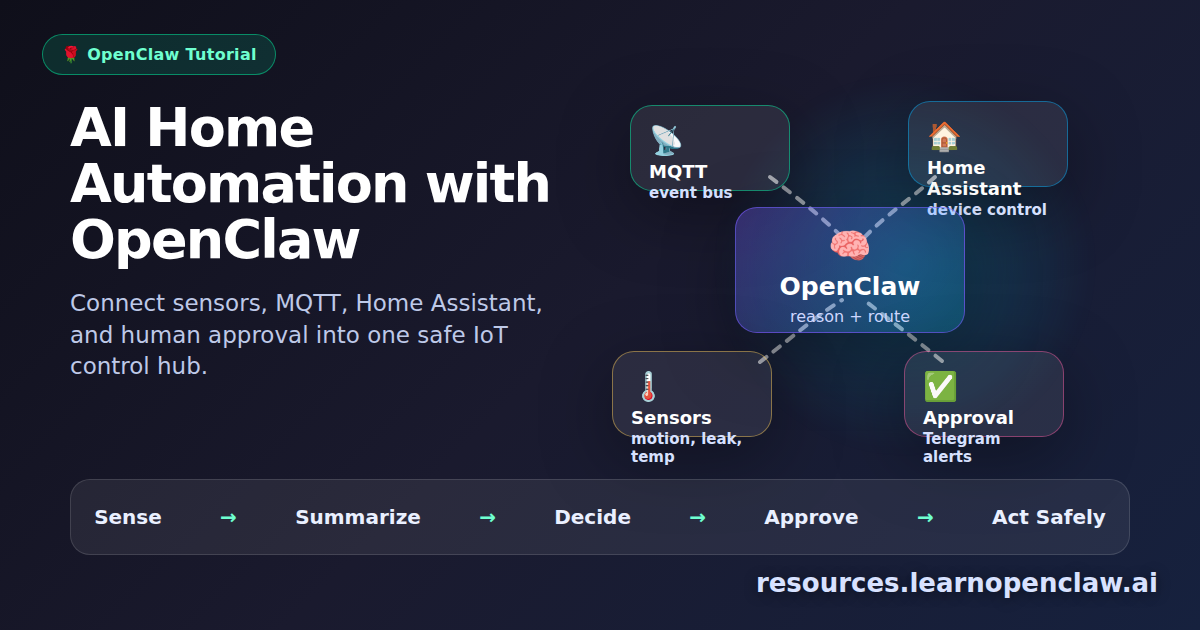
Home automation gets much more useful when your assistant can understand context, remember preferences, and decide when to notify you instead of blindly flipping switches. OpenClaw is a strong fit for that layer because it can sit between chat, schedules, sensors, and existing smart home systems such as Home Assistant, MQTT, Node-RED, Shelly, Zigbee2MQTT, or ESPHome.
This tutorial shows a practical pattern for building an OpenClaw-powered IoT control hub. The goal is not to replace Home Assistant. Home Assistant should still be the reliable device controller. OpenClaw becomes the reasoning and workflow layer that can answer questions, create automations, summarize events, and safely trigger approved actions.
By the end, you will have a simple architecture: sensors publish events, OpenClaw reviews them, safe commands flow back through a controlled script, and Telegram alerts keep humans in the loop. This is the pattern I recommend because it is powerful without giving an AI agent unrestricted access to your home.
How This Differs From Typical Smart Home Guides
Most home automation guides focus on one of two things: configuring device-level automations inside Home Assistant, or setting up a voice assistant that can control lights, thermostats, and scenes. Home Assistant’s own documentation is excellent for this: its automation guide explains triggers, conditions, actions, blueprints, and the visual editor, while its Assist documentation explains private voice control, local processing, wake words, ESPHome satellites, and optional LLM-powered conversations.
That is useful, but it is not the same as building an AI operations layer for your home. Traditional guides usually answer, “How do I make this device react to that event?” OpenClaw answers a different question: “What should my home tell me, remember, investigate, or ask approval for across multiple systems?”
The difference matters. A normal automation can turn on the hallway light when motion is detected. An OpenClaw workflow can notice that hallway motion happened while the house was in away mode, compare it against recent calendar context, summarize the event, check whether similar events happened this week, and ask before triggering anything risky. That makes OpenClaw a reasoning and coordination layer, not a replacement for the reliable device controller underneath it.
So the recommended pattern is: let Home Assistant, MQTT, Zigbee2MQTT, ESPHome, Shelly, or Node-RED keep controlling devices directly; let OpenClaw handle summaries, exceptions, multi-step reasoning, memory, notifications, and approval-gated actions. This gives you the best of both worlds: dependable local automation plus a smarter assistant that knows when something deserves human attention.
What You Are Building
The cleanest setup separates responsibility into four layers:
- Device layer: lights, locks, thermostats, motion sensors, plugs, cameras, and environment sensors.
- Automation layer: Home Assistant, MQTT, Node-RED, Zigbee2MQTT, or ESPHome handles direct device communication.
- Agent layer: OpenClaw receives summaries, checks rules, remembers preferences, and decides whether to alert or act.
- Approval layer: Telegram, Discord, email, or another channel confirms risky actions before they happen.
This matters because home automation touches the physical world. Turning on a lamp is low risk. Unlocking a door, disabling a camera, changing HVAC aggressively, or opening a garage is not. The best design gives OpenClaw useful access while keeping dangerous actions behind explicit guardrails.
Recommended Architecture
Here is the practical architecture for a first build:
- Home Assistant remains the source of truth for entities and device states.
- MQTT carries lightweight events between devices and scripts.
- A small OpenClaw script reads events and creates human-friendly summaries.
- Only approved commands are allowed to call Home Assistant services.
- All actions are logged to a local file for review.
This gives you an AI-assisted home without creating a fragile, over-permissioned monster. If the agent is unavailable, Home Assistant still works. If Home Assistant is unavailable, the agent does not pretend it can control devices. Each layer has a clear job.
Step 1: Create a Local Project Folder
Start with a small project inside your OpenClaw workspace. Keep the scripts separate from your WordPress site, app code, or unrelated automations.
$ mkdir -p /root/.openclaw/workspace/home-automation
$ cd /root/.openclaw/workspace/home-automation
$ npm init -y
$ npm install mqtt dotenv
Create an environment file for local connection details. Do not hard-code tokens directly into scripts.
$ cat > .env << 'EOF'
MQTT_URL=mqtt://192.168.1.50:1883
MQTT_USERNAME=openclaw
MQTT_PASSWORD=replace-this-password
HOME_ASSISTANT_URL=http://192.168.1.40:8123
HOME_ASSISTANT_TOKEN=replace-this-token
TELEGRAM_GROUP_ID=-1234567890
EOF
$ chmod 600 .env
Use a dedicated MQTT user and a dedicated Home Assistant long-lived access token. If something goes wrong later, you can revoke this integration without disturbing your personal admin login.
Step 2: Publish Sensor Events to MQTT
If you already use Zigbee2MQTT, ESPHome, or Home Assistant MQTT discovery, you may already have device events flowing through MQTT. For testing, publish a fake motion event manually:
$ mosquitto_pub -h 192.168.1.50 -t home/hallway/motion -m '{"motion":true,"battery":91,"source":"hallway"}'The exact topic structure is up to you, but I recommend a predictable naming scheme:
home/<room>/motionfor motion sensorshome/<room>/temperaturefor climate readingshome/<room>/doorfor contact sensorshome/system/alertsfor important eventshome/openclaw/commandsfor commands requested by the agent
Simple topic naming makes it easier for OpenClaw to summarize events and easier for you to debug problems later.
Step 3: Build a Small MQTT Listener
Now create a listener that receives events and writes them to a log. This is intentionally boring at first. Before asking an agent to reason about your home, verify that the raw event pipeline is reliable.
$ cat > mqtt-listener.js << 'EOF'
import 'dotenv/config';
import mqtt from 'mqtt';
import fs from 'node:fs';

const client = mqtt.connect(process.env.MQTT_URL, {
  username: process.env.MQTT_USERNAME,
  password: process.env.MQTT_PASSWORD,
});

client.on('connect', () => {
  console.log('Connected to MQTT');
  client.subscribe('home/#');
});

client.on('message', (topic, message) => {
  const event = {
    time: new Date().toISOString(),
    topic,
    payload: message.toString(),
  };

  fs.appendFileSync('home-events.jsonl', JSON.stringify(event) + '\n');
  console.log(event);
});
EOF
$ node mqtt-listener.js
Leave this running in one terminal and publish your test event from another. You should see the message appear in home-events.jsonl.
Step 4: Let OpenClaw Summarize Recent Events
Once events are logged, OpenClaw can summarize them on a schedule. The key is to pass the agent a focused, bounded file instead of asking it to inspect your entire machine.
$ tail -n 100 home-events.jsonl > recent-home-events.jsonl
$ openclaw run "Read /root/.openclaw/workspace/home-automation/recent-home-events.jsonl and summarize unusual home events. Mention only events that may require attention."
For a cron job, make the prompt stricter. Ask for a short result, force a yes/no attention flag, and tell the agent where to send alerts if needed.
Review recent-home-events.jsonl.
Return:
1. Attention needed: yes/no
2. Summary in two sentences
3. Recommended action
If there is motion while everyone is away, repeated failed lock events, water leak events, or temperature above 32C, notify Telegram.
This is where OpenClaw shines. It can combine logs, memory, schedules, and preferences. For example, hallway motion at 2 PM may be normal. Hallway motion at 2 AM while the house is in away mode may deserve an alert.
Step 5: Add Safe Home Assistant Commands
Do not give the agent a generic “call any Home Assistant service” script. That is too broad. Instead, create a small command gateway with an allowlist.
$ cat > ha-command.js << 'EOF'
import 'dotenv/config';

const allowedCommands = {
  'turn_on_entry_light': {
    domain: 'light',
    service: 'turn_on',
    data: { entity_id: 'light.entry' },
  },
  'turn_off_entry_light': {
    domain: 'light',
    service: 'turn_off',
    data: { entity_id: 'light.entry' },
  },
  'set_ac_24': {
    domain: 'climate',
    service: 'set_temperature',
    data: { entity_id: 'climate.living_room', temperature: 24 },
  },
};

const command = process.argv[2];
const selected = allowedCommands[command];

if (!selected) {
  console.error(`Command not allowed: ${command}`);
  process.exit(1);
}

const url = `${process.env.HOME_ASSISTANT_URL}/api/services/${selected.domain}/${selected.service}`;

const response = await fetch(url, {
  method: 'POST',
  headers: {
    Authorization: `Bearer ${process.env.HOME_ASSISTANT_TOKEN}`,
    'Content-Type': 'application/json',
  },
  body: JSON.stringify(selected.data),
});

if (!response.ok) {
  console.error(await response.text());
  process.exit(1);
}

console.log(`Executed: ${command}`);
EOF
$ node ha-command.js turn_on_entry_light
This is the most important security pattern in the entire tutorial. The agent can request turn_on_entry_light, but it cannot invent a new command like unlock_front_door unless you explicitly add it to the allowlist.
Step 6: Add Human Approval for Risky Actions
For low-risk actions, automation is fine. For risky actions, use approval. A good rule is simple: if the action affects access, safety, money, privacy, or irreversible state, require confirmation.
Examples of actions that should require approval:
- Unlocking doors or gates
- Opening a garage
- Disabling cameras or alarms
- Changing thermostat settings outside a narrow safe range
- Running appliances while nobody is home
OpenClaw can send a Telegram message with a suggested action instead of executing it directly. Keep the wording specific:
Motion detected in hallway at 02:14 while home mode is Away.
Recommended action: turn on entry light and send alert.
Reply "approve light" to run the safe command, or "ignore" to dismiss.
That style is better than vague alerts like “something happened.” A good alert should say what happened, why it matters, and what decision is needed.
Step 7: Schedule the Review
You can run the review every few minutes for security-related events or less often for comfort and maintenance summaries. Start conservative. Too many alerts create notification fatigue.
$ cat > review-home-events.sh << 'EOF'
#!/usr/bin/env bash
set -euo pipefail
cd /root/.openclaw/workspace/home-automation

tail -n 100 home-events.jsonl > recent-home-events.jsonl
openclaw run "Review recent-home-events.jsonl. Alert only for unusual, safety-relevant, or actionable home events. Keep the summary under 120 words."
EOF
$ chmod +x review-home-events.sh
$ crontab -e
Add a schedule like this:
*/10 * * * * /root/.openclaw/workspace/home-automation/review-home-events.sh >> /root/.openclaw/workspace/home-automation/review.log 2>&1If you are using OpenClaw’s built-in cron system instead of system cron, create the same recurring job there and set a short timeout. Home monitoring jobs should fail fast and report clearly instead of hanging for an hour.
Useful Automation Ideas
Once the basic loop works, expand carefully. Here are strong use cases:
- Daily home summary: “What happened at home today?” including motion, doors, temperature, and battery warnings.
- Water leak escalation: Send immediate alerts if leak sensors trigger, then repeat every five minutes until dismissed.
- Comfort optimization: Suggest thermostat changes based on temperature, humidity, occupancy, and time of day.
- Maintenance reminders: Track low batteries, offline devices, dirty filters, or repeated device failures.
- Presence-aware routines: Recommend actions based on whether people are home, away, sleeping, or traveling.
The best automations are not the flashiest. They are the ones that remove tiny recurring annoyances while making the home safer and easier to understand.
Security Best Practices
Home automation deserves stricter security than most software projects because mistakes can affect real people and physical spaces. Use these guardrails from the beginning:
- Use dedicated tokens for OpenClaw integrations.
- Keep credentials in
.envfiles with restrictive permissions. - Allowlist commands instead of allowing arbitrary service calls.
- Require approval for locks, alarms, doors, cameras, and appliances.
- Log every event and every action.
- Prefer local network access over exposing Home Assistant publicly.
- Review permissions monthly and revoke anything unused.
If you want one strong opinion: never let an agent directly unlock doors without a human confirmation step. Convenience is not worth that risk.
Troubleshooting Common Problems
MQTT Events Are Not Appearing
Check the broker address, username, password, topic, and firewall. Subscribe manually to confirm events are flowing:
$ mosquitto_sub -h 192.168.1.50 -t 'home/#' -vHome Assistant Rejects Commands
Regenerate the long-lived token, confirm the entity ID exists, and test the Home Assistant API directly:
$ curl -H "Authorization: Bearer $HOME_ASSISTANT_TOKEN" http://192.168.1.40:8123/api/states/light.entryThe Agent Sends Too Many Alerts
Tighten the prompt. Add explicit thresholds. Tell OpenClaw to alert only when the event is unusual, safety-relevant, or actionable. Notification quality matters more than volume.
FAQ
Can OpenClaw replace Home Assistant?
Technically you can wire OpenClaw directly to device APIs, but I do not recommend it. Home Assistant is better as the device controller. OpenClaw is better as the reasoning, summary, scheduling, and human-in-the-loop layer.
Do I need MQTT?
No, but MQTT is a clean, widely supported event bus for IoT. If your devices already report through Home Assistant, Node-RED, or webhooks, you can use those instead. The architecture stays the same: collect events, summarize them, and allow only safe actions.
Is it safe to let an AI agent control smart home devices?
It can be safe if you use strict boundaries. Give the agent read access and low-risk actions first. Put locks, doors, alarms, cameras, and appliances behind human approval. Avoid broad admin tokens.
What should I automate first?
Start with summaries and alerts, not control. A daily home summary, low-battery report, water leak alert, or offline-device warning gives value with very little risk.
Can this work with Telegram or Discord?
Yes. OpenClaw can notify different channels depending on the event type. For example, safety alerts can go to Telegram immediately, while maintenance summaries can go to a daily Discord thread.
Final Thoughts
The best OpenClaw home automation setup is not “AI controls everything.” It is “AI understands what is happening, explains it clearly, and takes safe actions when allowed.” That difference matters.
Use Home Assistant or MQTT for reliable device control. Use OpenClaw for context, memory, summaries, and decision support. Add allowlisted commands for safe actions. Require approval for anything risky. With that structure, you get a smart home that feels genuinely helpful without handing your front door to a hallucinating script.