AI agents are powerful, but they have a critical limitation: they wake up with amnesia every session. Your OpenClaw agent doesn’t remember yesterday’s conversation, the decision you made last week, or the API credentials you configured three days ago.
This is where OpenClaw’s memory system transforms a forgetful assistant into a persistent, context-aware partner. In this comprehensive guide, you’ll learn how to leverage MEMORY.md, daily memory files, semantic search, and knowledge bases to give your AI agent true continuity.
Why Memory Matters for AI Agents
Imagine asking your AI agent to help with a project, making important decisions together, and then the next day having to re-explain everything from scratch. That’s the default experience with stateless AI.
OpenClaw’s memory system solves this by:
- Preserving context across sessions — Your agent remembers past conversations, decisions, and learnings
- Enabling semantic search — Find relevant information based on meaning, not just keywords
- Building institutional knowledge — Create a searchable knowledge base that grows over time
- Reducing repetition — Stop re-explaining the same context every session
The Three Layers of OpenClaw Memory
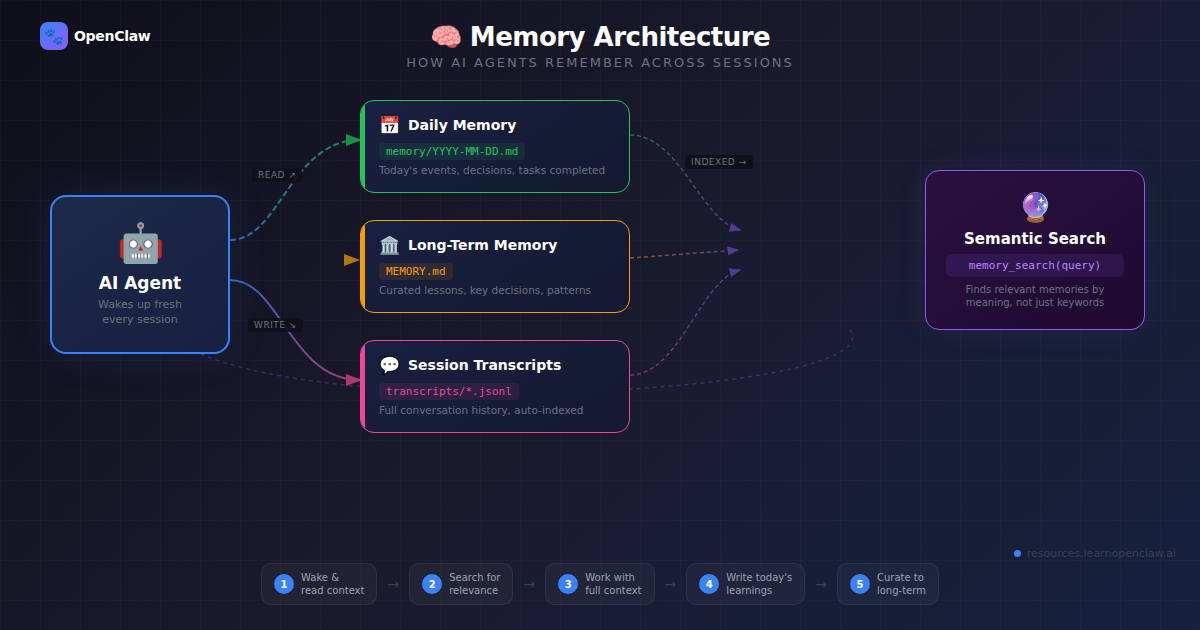
OpenClaw uses a three-tier memory architecture designed for different use cases:
1. Daily Memory Files (Short-Term Context)
Located in memory/YYYY-MM-DD.md, these files capture what happened on a specific day. Your agent automatically reads today’s and yesterday’s memory at the start of each session.
Perfect for:
- Session logs and conversation summaries
- Temporary decisions and notes
- Quick reference for recent work
- Daily task tracking
2. MEMORY.md (Long-Term Knowledge)
Your curated, permanent knowledge base. This file contains important information worth keeping indefinitely — API configurations, important decisions, recurring patterns, and lessons learned.
Perfect for:
- API keys and credentials locations (not the keys themselves!)
- Project structure and conventions
- Important decisions and their reasoning
- Recurring issues and their solutions
3. Session Transcripts (Automatic Archive)
OpenClaw automatically archives all conversations in the session database. These can be semantically searched using memory_search when you need to recall old conversations.
Setting Up Your Memory System
OpenClaw creates the memory structure automatically in your workspace directory. Here’s how to verify and customize it:
Step 1: Check Your Memory Directory
$ cd ~/.openclaw/workspace
$ ls -la memory/
You should see files like 2026-03-16.md, 2026-03-15.md, etc.
Step 2: Create Your MEMORY.md
If it doesn’t exist yet, create your long-term memory file:
$ touch ~/.openclaw/workspace/MEMORY.md
$ nano ~/.openclaw/workspace/MEMORY.md
Start with this template:
# MEMORY.md - Long-Term Knowledge Base

## API Credentials
- Twitter API keys: stored in .env.twitter
- OpenAI API key: stored in ~/.openclaw/config.yaml
- Linear API token: stored in .env.linear

## Important Decisions
- 2026-03-10: Switched from GPT-4 to Claude Sonnet for cost savings
- 2026-03-12: Decided to use RALPH loops for autonomous app development

## Recurring Patterns
- WordPress uploads need www-data ownership: chown -R www-data:www-data
- Git repos always go in ~/projects/
- Blog posts require category assignment before publishing

## Project Conventions
- Use trash instead of rm for safety
- Always test in staging before production
- Document every cron job in memory/cron-jobs.md
Using memory_search: Semantic Recall
The real power of OpenClaw’s memory system comes from semantic search. Instead of grepping for keywords, you can search by meaning.
How Semantic Search Works
OpenClaw embeds your memory files and session transcripts into a vector database. When you search, it finds contextually relevant information even if the exact words don’t match.
Example: Traditional keyword search vs semantic search
Keyword search for “API key” would miss:
- “Twitter authentication token location”
- “Where we store credentials”
- “Bearer token configuration”
Semantic search finds all of these because it understands the meaning.
Performing a Memory Search
Your OpenClaw agent automatically uses memory_search when answering questions about past work, but you can also trigger it manually:
You: "Search my memory for Twitter API configuration"

Agent will call: memory_search(query="Twitter API configuration")

Returns:
- MEMORY.md lines 5-8: Twitter API credentials
- 2026-03-10.md lines 23-30: Twitter webhook setup
- Session transcript from March 12: Debugging Twitter rate limits
Best Practices for Searchable Memory
Use descriptive headings:
## Twitter API Rate Limits - How We Handle Them
## WordPress Image Upload Permissions Fix
## Why We Switched From GPT-4 to Claude Sonnet
Include context and reasoning:
## Decision: Using RALPH Loops for App Development

Date: 2026-03-12
Context: Building a content management system
Problem: Manual coding was taking 40+ hours per feature
Solution: Implemented RALPH (lite agent + coding agent loop)
Result: Development time reduced to 4-6 hours per feature
Why it works: Lite agent plans, coding agent executes, iteration is automatic
Daily Memory Workflow
Here’s a practical workflow for maintaining effective daily memory files:
Morning: Load Recent Context
Your agent automatically reads today’s and yesterday’s memory files. You can manually check what’s loaded:
$ cat ~/.openclaw/workspace/memory/$(date +%Y-%m-%d).md
$ cat ~/.openclaw/workspace/memory/$(date -d "yesterday" +%Y-%m-%d).md
During Work: Document Decisions
When you make an important decision or solve a tricky problem, ask your agent to document it:
You: "Document this decision: We're using Replicate for AI image generation because it's cheaper than OpenAI DALL-E and has better anime/fantasy style models."

Agent: *Appends to today's memory file AND updates MEMORY.md*
Evening: Archive Important Content
At the end of the day, review what happened and move important entries to MEMORY.md:
You: "Move today's Replicate API decision to MEMORY.md under API Integrations section"

Agent: *Reads today's memory, extracts the entry, appends to MEMORY.md*
Advanced Memory Patterns
Structured Knowledge Base
For complex projects, create dedicated memory files:
$ mkdir -p ~/.openclaw/workspace/memory/projects
$ touch ~/.openclaw/workspace/memory/projects/ecommerce-app.md
$ touch ~/.openclaw/workspace/memory/projects/blog-automation.md
These files are automatically included in semantic search.
Error Resolution Log
Track errors and their solutions to prevent repetition:
## Error: WordPress Image Thumbnails Not Generating

Date: 2026-03-14
Error Message: "Unable to create directory uploads/2026/03. Is its parent directory writable?"
Root Cause: Apache runs as www-data but files owned by root
Solution: chown -R www-data:www-data /var/www/html/wp-content/uploads
Prevention: Always set correct ownership after WordPress installation
API Credential Tracker
Keep a master list of where credentials are stored (never store actual keys in memory files!):
## API Credentials Reference

| Service | Location | Last Updated | Notes |
|---------|----------|--------------|-------|
| Twitter | ~/.openclaw/workspace/.env.twitter | 2026-03-10 | v2 API with Bearer token |
| OpenAI | ~/.openclaw/config.yaml | 2026-02-15 | Shared across all agents |
| Linear | ~/.openclaw/workspace/.env.linear | 2026-03-11 | Team: Abugosh workspace |
| Replicate | ~/.openclaw/workspace/.env.replicate | 2026-03-14 | For AI image generation |
Real-World Example: Building a WordPress Automation Agent
Let’s walk through how memory enables a multi-week WordPress automation project:
Week 1: Initial Setup
You configure WordPress, set up WP-CLI, and document it in daily memory:
# memory/2026-03-10.md

## WordPress Setup Completed
- Site: https://resources.learnopenclaw.ai
- Path: /var/www/resources.learnopenclaw.ai
- User: admin
- Application password generated for WP-CLI/REST API
- Categories configured: Tutorials, Social Media, Cost Optimization
Important details move to MEMORY.md:
# MEMORY.md

## WordPress Configuration
- **Site URL:** https://resources.learnopenclaw.ai
- **Install Path:** /var/www/resources.learnopenclaw.ai
- **REST API User:** admin
- **Application Password:** Stored in TOOLS.md (encrypted)
- **Publishing Rule:** NEVER leave category as Uncategorized
Week 2: Building Automation
You create a blog automation script. When errors occur, they’re documented:
# memory/2026-03-15.md

## Blog Automation Issues Resolved
Problem: Posts had gray code text instead of white
Root cause: WordPress theme CSS overriding inline styles
Solution: Added !important to color declarations in post content
Lesson: Always include inline styles with high specificity for code blocks
Week 3: Leveraging Memory
Three weeks later, you start a new automation project. Your agent remembers:
You: "Create a new WordPress blog post about OpenClaw skills"

Agent: *Automatically searches memory*
- Found MEMORY.md: WordPress site configuration
- Found 2026-03-15.md: Code block styling requirements
- Found MEMORY.md: Category assignment rule

Agent: "Creating post with proper code block styling and will assign to 'Skills' category after publishing..."
No re-explaining. No repeated mistakes. Just continuity.
Memory Maintenance: Keeping It Useful
Weekly Review
Every week, review your daily memory files and archive important entries:
You: "Review this week's memory files and move important entries to MEMORY.md"

Agent: *Reads memory/2026-03-10.md through memory/2026-03-16.md*
Agent: *Identifies recurring patterns, important decisions, and solutions*
Agent: *Updates MEMORY.md with consolidated knowledge*
Monthly Cleanup
Archive old daily memory files to prevent clutter:
$ mkdir -p ~/.openclaw/workspace/memory/archive/2026-02
$ mv ~/.openclaw/workspace/memory/2026-02-*.md ~/.openclaw/workspace/memory/archive/2026-02/
Archived files remain searchable through semantic search.
Frequently Asked Questions
Q: How much does semantic search cost?
Semantic search uses embedding models (typically very cheap). Expect $0.0001-0.001 per search query. For typical usage (10-20 searches per day), monthly cost is under $1.
Q: Can I disable memory search for certain sessions?
Yes. Use the basic mode prefix to minimize tool calls including memory searches. Memory search is primarily triggered in advanced mode or when you ask historical questions.
Q: What if memory_search is disabled?
If you see disabled=true in a memory_search response, semantic search is unavailable (usually due to missing embedding configuration). Your agent will fall back to reading memory files directly.
Q: Should I store API keys in memory files?
No. Store the location of credentials, not the credentials themselves. Example: “Twitter API key stored in .env.twitter” not the actual key value.
Q: How do I search old session transcripts?
Just ask your agent a question about past conversations. It will automatically call memory_search which includes session transcripts in the search scope.
Q: Can I have multiple MEMORY.md files?
Yes! Create organized memory files like memory/projects/project-name.md or memory/apis/twitter.md. All markdown files in the memory directory are searchable.
Q: What’s the difference between MEMORY.md and TOOLS.md?
MEMORY.md is for general knowledge and context. TOOLS.md is specifically for environment details (server paths, installed tools, credentials locations). Both are searched automatically.
Best Practices Summary
- Write decisions down immediately — Don’t trust yourself to remember later
- Include context and reasoning — Future-you needs to know WHY, not just WHAT
- Use descriptive headings — Makes semantic search more effective
- Archive weekly — Move important daily notes to MEMORY.md
- Never store secrets — Only store locations/references to credentials
- Document errors and solutions — Prevent repeating the same mistakes
- Review and consolidate — Keep MEMORY.md organized and curated
Conclusion
OpenClaw’s memory system transforms ephemeral AI conversations into persistent, institutional knowledge. By maintaining daily memory files, curating MEMORY.md, and leveraging semantic search, you create an AI assistant that truly remembers.
The difference between a helpful AI and an indispensable partner is continuity. Start documenting today’s decisions and conversations — your future self will thank you.
Next steps:
- Create your
MEMORY.mdfile with the template above - Document one decision or solution today
- Try semantic search: ask your agent about past work
- Set a weekly reminder to archive important daily entries
Memory is power. Use it wisely.